
Admins invite people and pick their role in Admin → Add Members. Only admins can change someone’s role or remove them from the workspace.
Admins
Admins see and can change every lead in the workspace, private ones included, and every event, including events restricted to assigned members. On top of that, only admins can:- change roles, remove members, and revoke or resend invitations
- set what sub-admins can do
- manage billing and buy credit packs
- create API keys and capture forms
- see team usage in Settings → Usage
Sub-admins
A sub-admin is a member with extra permissions. All sub-admins in a workspace share one set, which admins edit in Organization → Team settings. A new workspace starts sub-admins with View leads and View events only.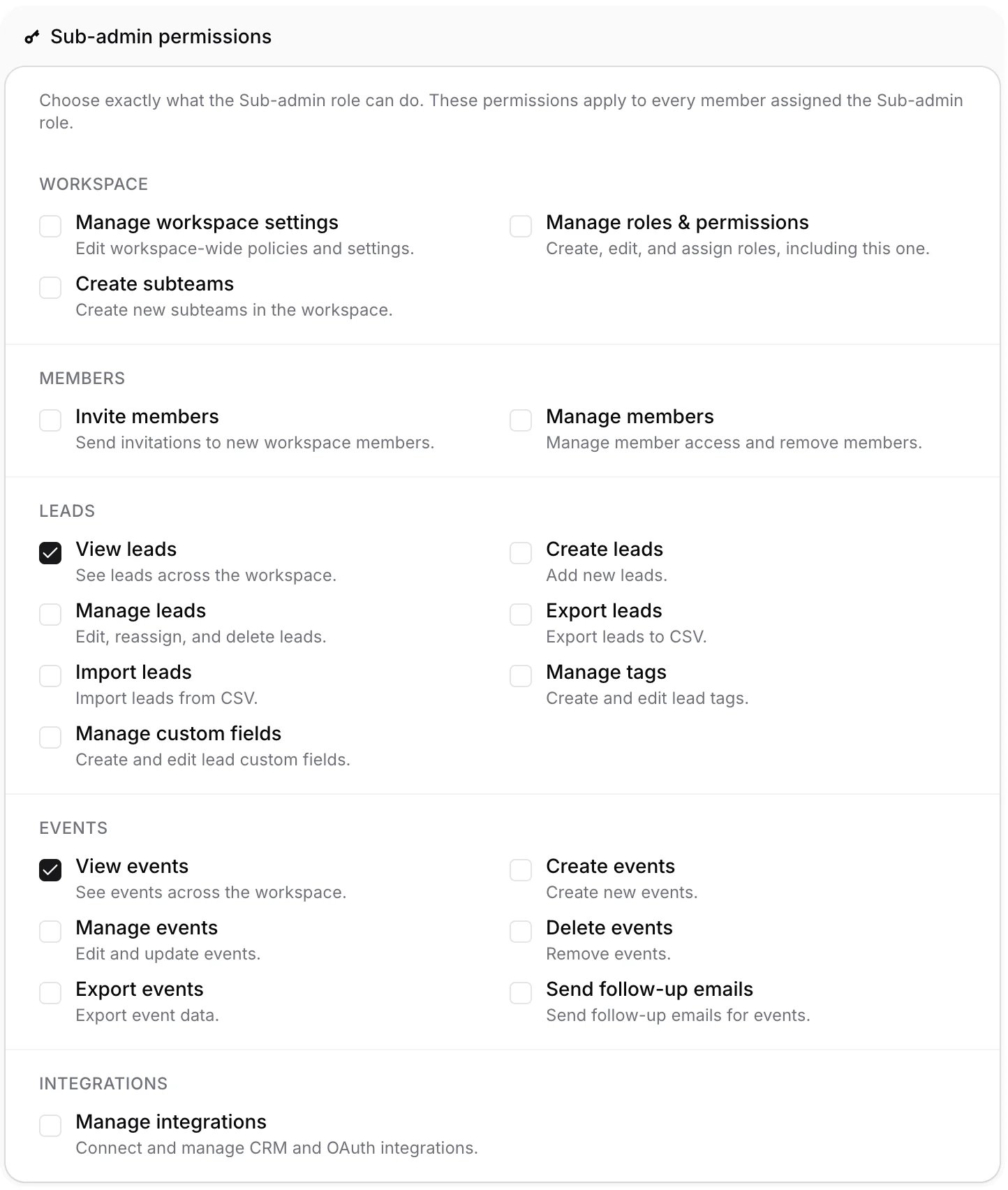
Every sub-admin also sees workspace Analytics and the per-rep numbers on events.
A permission only reaches what the sub-admin can see. Manage leads doesn’t open a colleague’s private lead, and Manage events doesn’t open an event restricted to assigned members. Admins are the only role that sees everything.
Members
Members can view workspace leads, create leads and view events. They always see their own leads and leads assigned to them. Anything more needs the Sub-admin role. Members don’t see workspace Analytics. On an event they see its numbers over the leads they can see, without the per-rep breakdown. Event cards show every member the total lead count, but budget, actual cost and deal size only to admins and sub-admins.Who sees a lead
The same rule applies everywhere a lead can show up: lists, search, exports, analytics, the AI chat and the AI assistant connection. If you can’t open a lead in the app, none of those will show it to you either.
Tags work the same way. A private tag is seen only by the person who made it and by admins. A subteam tag is seen by that subteam’s members.
Leads added for someone else
Anyone who can create leads can file one under a colleague. That happens when one rep scans for the whole booth, when an event has a default owner, when a capture form or CSV import names an owner, and when someone reassigns a lead.- The new owner gets a notification: “Alex added a lead for you” or “Alex assigned you a lead”.
- The lead’s timeline records who created or reassigned it.
- If the event has follow-up drafts turned on, the draft is written for the owner and lands in the owner’s own mailbox, never the person who captured it.
- If the lead changes owner before its draft is written, the draft is cancelled. The new owner can write their own.
Restricted events
An event set to Restrict to assigned members is seen only by its creator, the people assigned to it, and admins. A sub-admin with View events or Manage events doesn’t see it unless they’re assigned. Restricted events stay out of workspace analytics for everyone except admins.Personal connections
Your mailbox connection is yours. Follow-up drafts go into your own mailbox, and no one else in the workspace can use it. CRM and data-provider connections belong to the workspace and are set up by people with Manage integrations. Only they see which account a CRM is connected with.When someone leaves
Removing a member takes away their access right away. Their sub-admin role, custom roles, subteam roles and any extra permissions they were granted are deleted, so if they’re invited back later they start as a plain member. Their leads stay in the workspace under their name until someone reassigns them. Removing someone from a subteam also removes their role in that subteam.Questions
A lead or event I expect is missing
A lead or event I expect is missing
It’s private, shared with others, or restricted to assigned members. Ask the owner to assign you, or ask an admin.
Can a sub-admin make someone an admin?
Can a sub-admin make someone an admin?
No. Sub-admins with Invite members can only invite people as Members. Only admins change roles.