
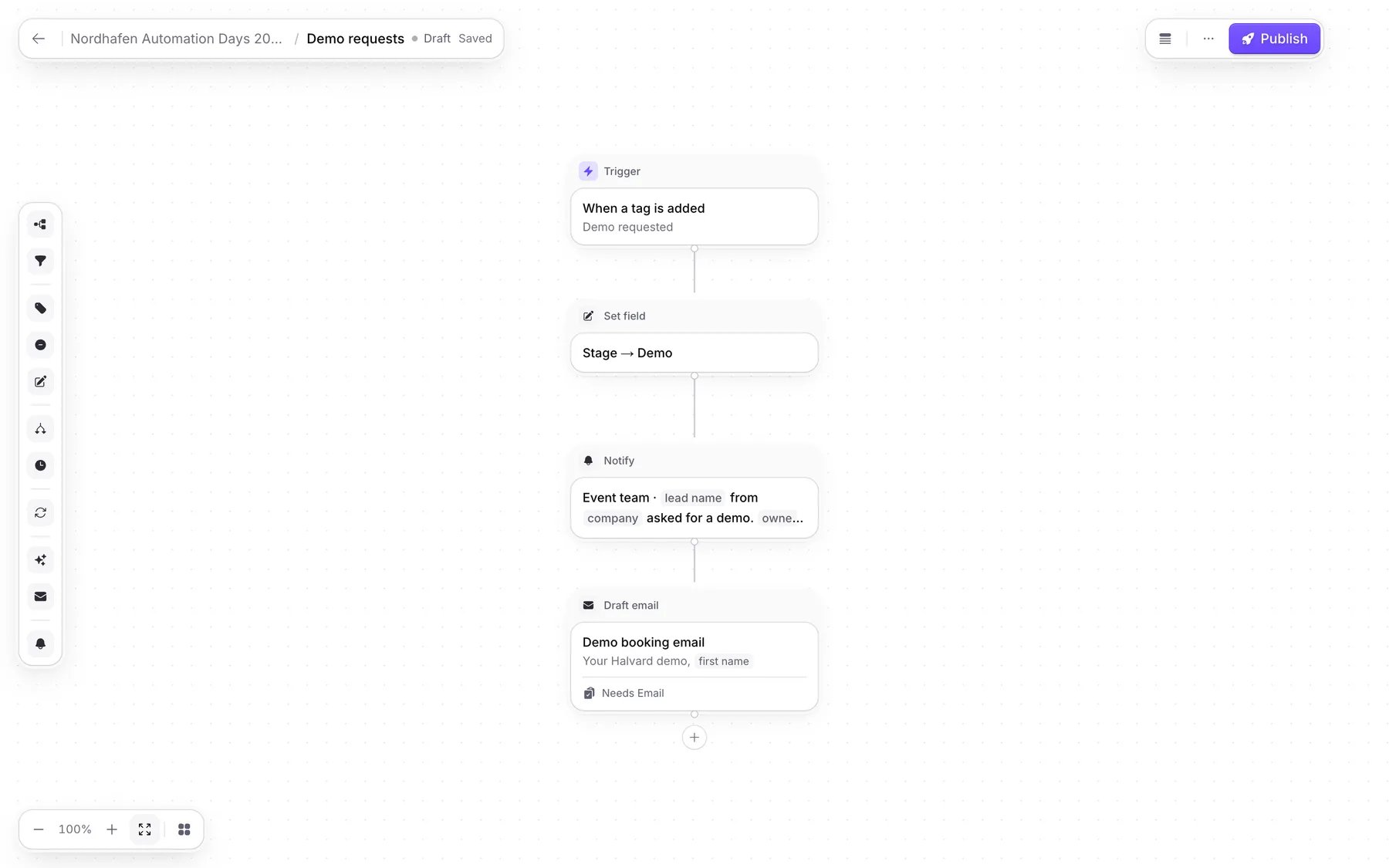
1. Create a blank flow
- Open the event’s Flow tab and select New flow.
- Pick Blank flow, name it Demo requests and select Create flow.
2. Start it from the tag
Select the Trigger card and choose When a tag is added. Under Tags, tick Demo requested.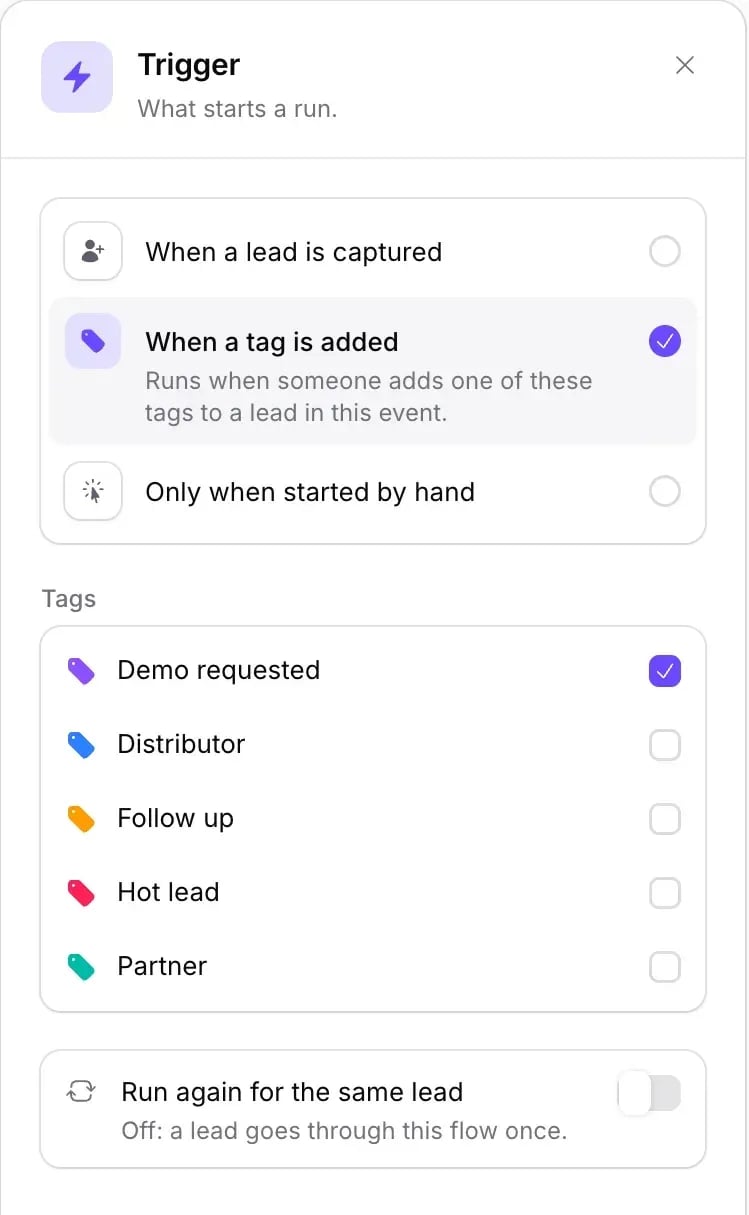
3. Move the lead to Demo
Click + under the trigger and pick Set field. Set Field to Stage and Value to Demo.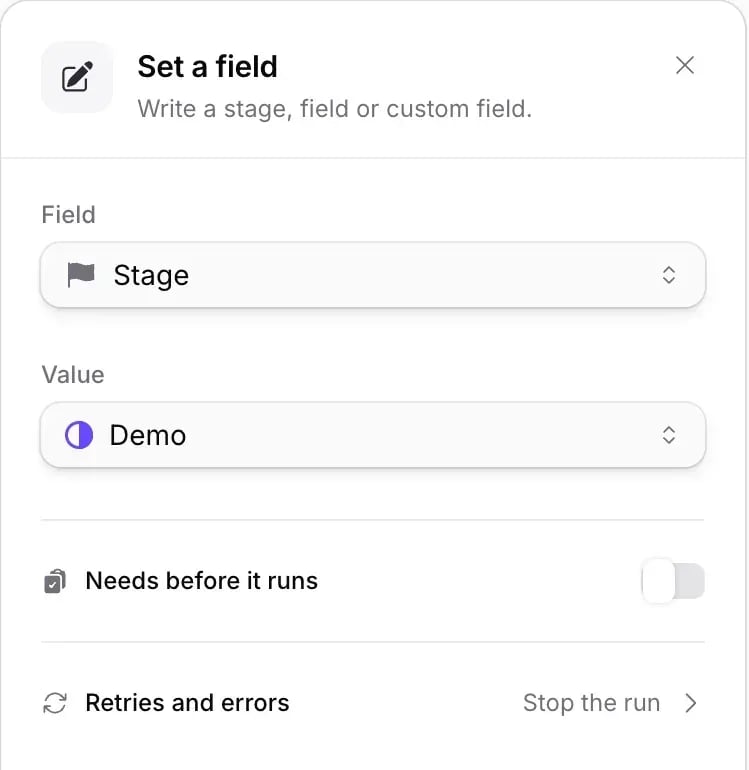
4. Tell the event team
Click + under Set field and pick Notify:- Send to: Event team (the lead owner and the people assigned to the event)
- Message:
{{lead_name}} from {{company}} asked for a demo. {{owner_name}} is on it.
5. Draft the booking email
Click + under Notify and pick Draft email. This step uses no AI: you write the email once, and CAARD fills in each lead’s details. Name the step Demo booking email, then write the subject and message on the card:Subject
Message
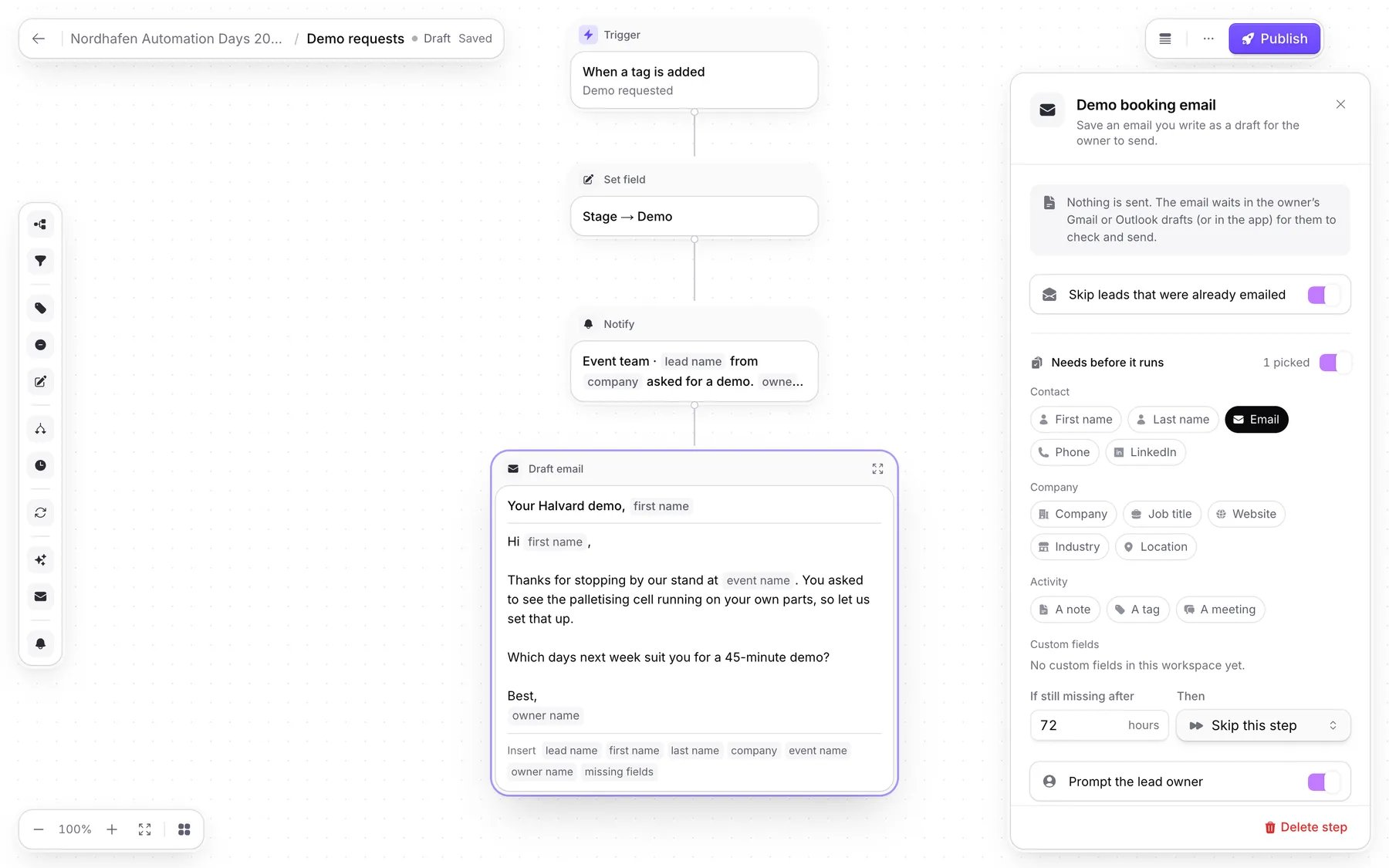
- Leave Skip leads that were already emailed on, so a lead someone has already written to doesn’t get a second email.
- Turn on Needs before it runs and pick Email. A lead tagged before the rep had their address waits for it, and the owner is prompted to add it. Set If still missing after to 72 hours, then Skip this step.
6. Publish and try it
Select Publish. Then open a lead from the event, add the Demo requested tag, and open the flow’s runs panel. The new run shows the stage change, who was notified and where the draft went.Things to know
- Tags that flows add don’t count. If another flow tags leads Demo requested, for example by sorting them with AI, that doesn’t start this flow. Put these steps on that flow’s path instead.
- Only this event’s leads. A tag added to a lead from another event, or with no event, doesn’t start it. Build the same flow on each event that needs it.
- Tags already on leads don’t start runs when you publish. To catch leads tagged before, use Run on a lead in the runs panel.