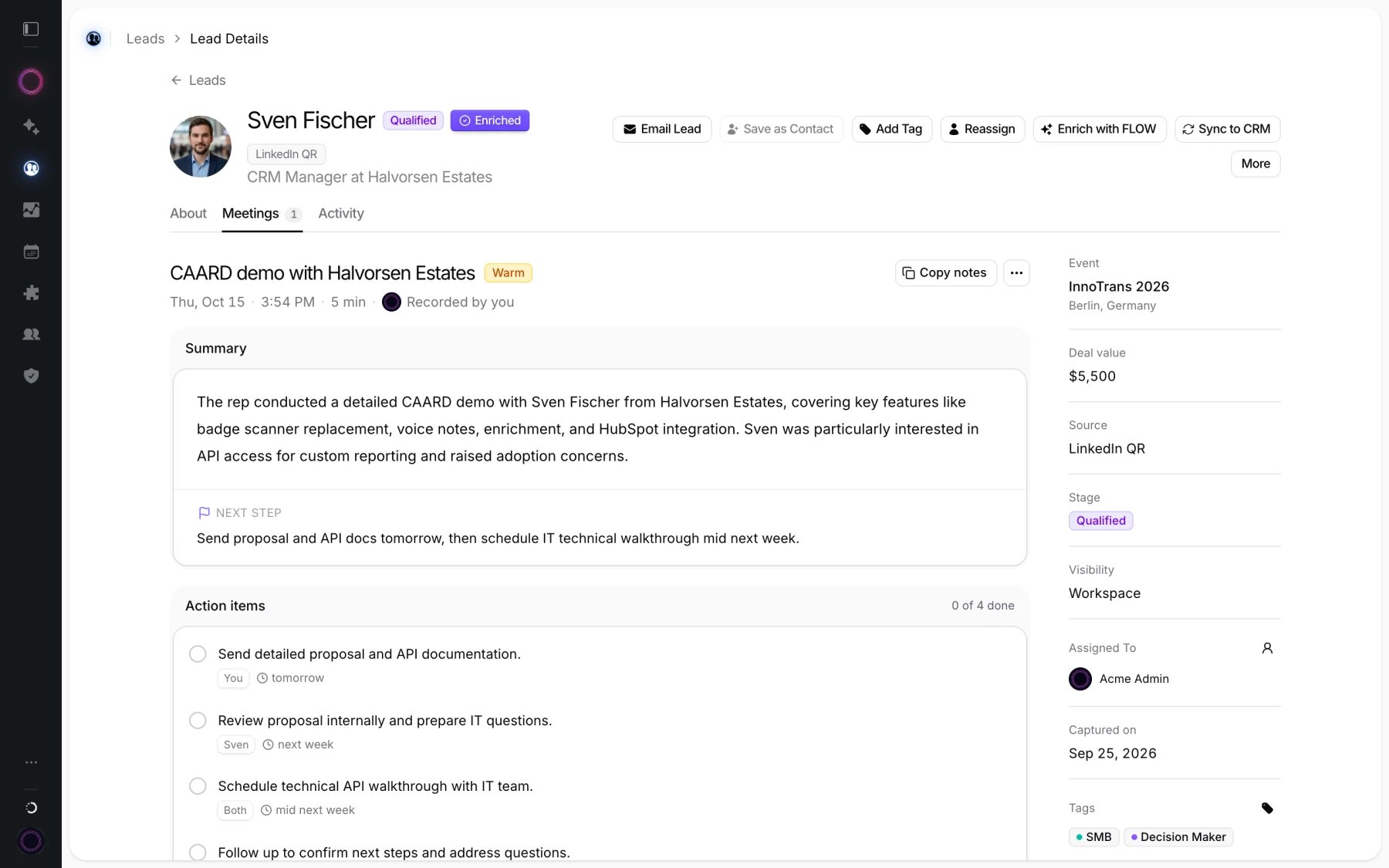
When you record a conversation with the CAARD app on your phone, it’s transcribed and written up for you. The result appears on the lead’s Meetings tab on the dashboard, newest first.
A recorded meeting on a lead's Meetings tab, with the interest badge, summary, next step and action items

What a meeting shows

  • Summary: a short write-up of the conversation
  • Next step: what should happen next
  • Action items: who owes what (You, Them, Both, or Us), with a count of how many are done
  • Key points: the main points discussed
  • Sales read: the lead’s interest (Hot, Warm, Cold, or Unclear), plus their Needs, Objections, and Buying signals
  • Your notes: notes the recorder added to the meeting in the app
  • Transcript: the full conversation, split by speaker
Search the transcript to jump between matches. Copy notes and Copy transcript copy the text so you can paste it elsewhere. The meeting’s summary is also added to the lead’s notes. While a meeting is processing, it shows Transcribing, then Writing the notes. If the recording had no speech in it, the meeting says so. If the write-up failed, the person who recorded it can select Try again.

Who can read and edit

  • Anyone who can open the lead can read its meetings, including meetings a teammate recorded.
  • Only the person who recorded a meeting can tick off its action items, retry it, or delete it. Deleting a meeting removes its transcript and notes. What it added to the lead’s notes stays.

Send meetings to your CRM

Meeting summaries and transcripts can sync to your CRM. Map Meeting summaries and Meeting transcripts to CRM fields in the field mapping: