Follow each lead through a flow, fill in what it’s waiting for, and retry, cancel or start runs by hand.
Each time a lead starts a published flow, CAARD makes a run: one lead’s trip through that flow’s steps. Runs show you what a flow did with every lead, and they’re where you fix things when something goes wrong.
Open the runs
In the flow editor, select the list button at the top right, next to the On switch. The Runs panel lists the flow’s runs, newest first, with the lead, what started the run and its status. Filter by Running, Waiting, Failed or Done.
Status
Means
Queued
About to start.
Running
Working through its steps.
Waiting
Paused on a Wait step, or waiting for details the lead is missing.
Done
Reached the end of its path. A lead that a filter stopped counts as done.
Failed
A step failed and the run stopped.
Canceled
Someone canceled it, or the flow was deleted.
Follow one lead
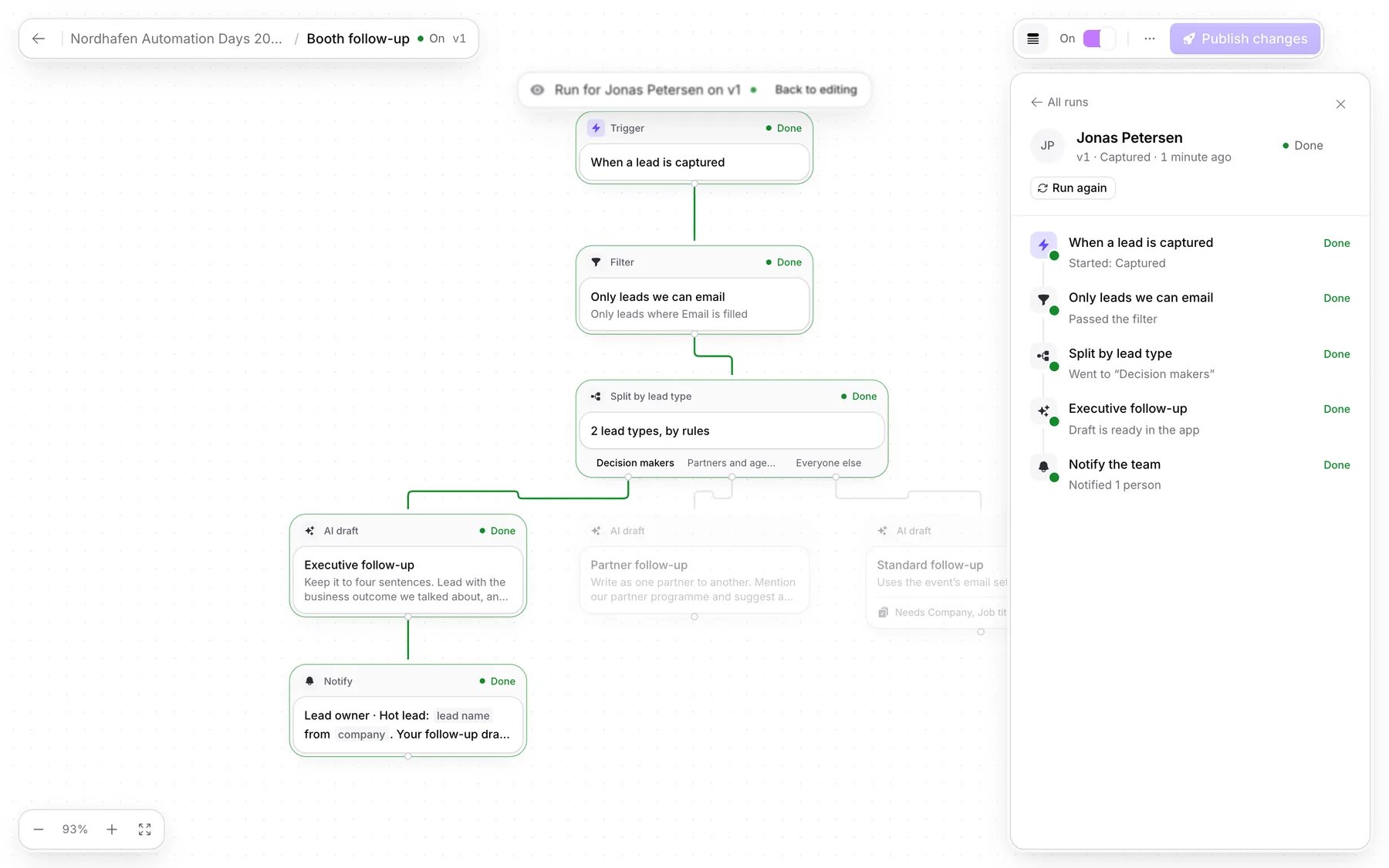
Select a run. The canvas shows the version the run used, and the steps light up as the lead reaches them; the path it took is drawn in green. The panel lists each step with what it did, in plain words.
Some of the things a step reports:
Split by lead type: Went to “Decision makers”, or for an AI split AI picked “Decision makers” with its reason.
Filter: Passed the filter or Filtered out here.
Sync to CRM: Synced to HubSpot, or Failed for HubSpot with the CRM’s error.
AI draft: Draft is in the owner’s mailbox or Draft is ready in the app.
Notify: Notified 2 people.
Select Back to editing at the top of the canvas to return to the draft.
Waiting for details
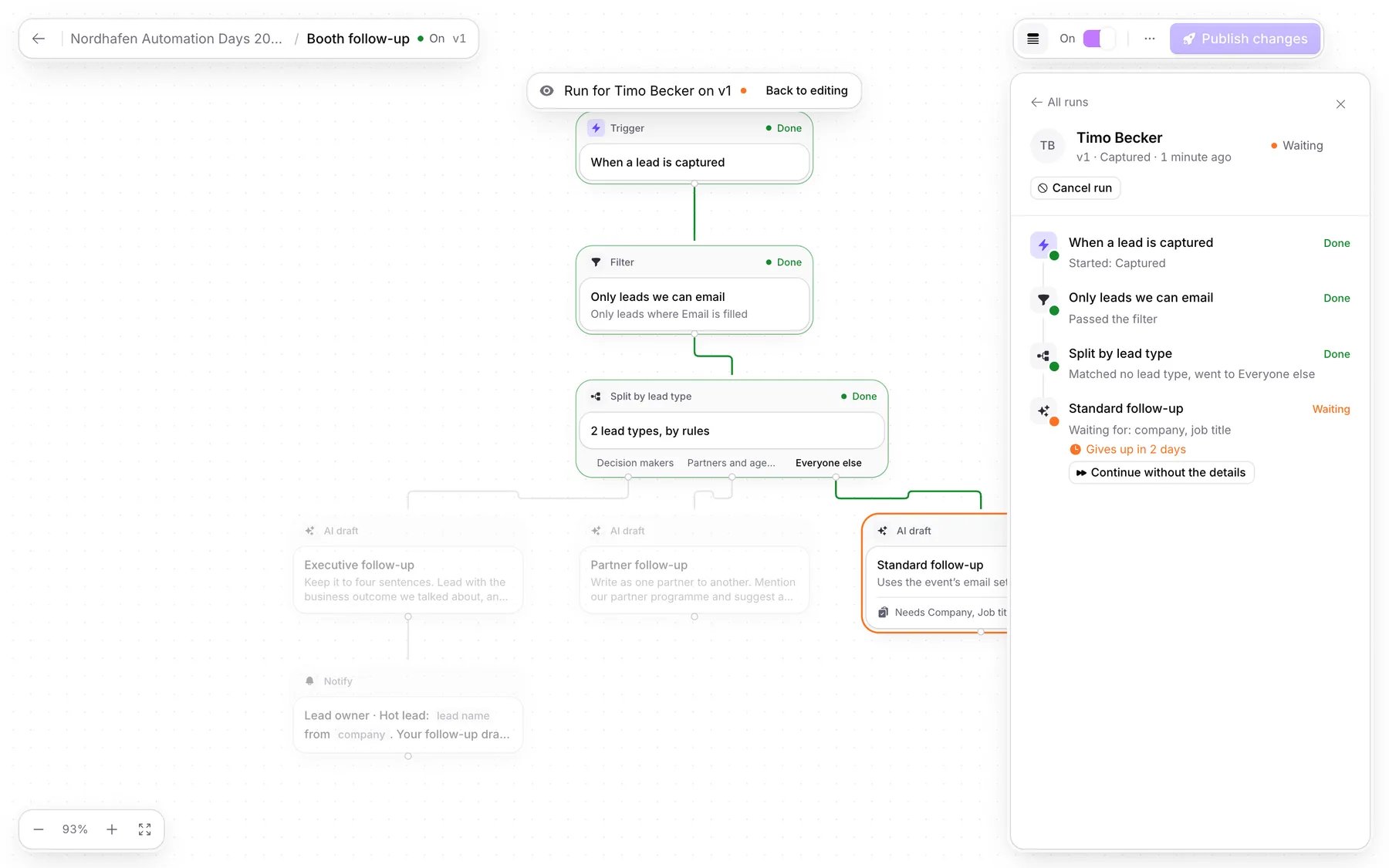
A step with Needs before it runs waits until the lead has the details it needs. The run shows what’s missing and when the step gives up.
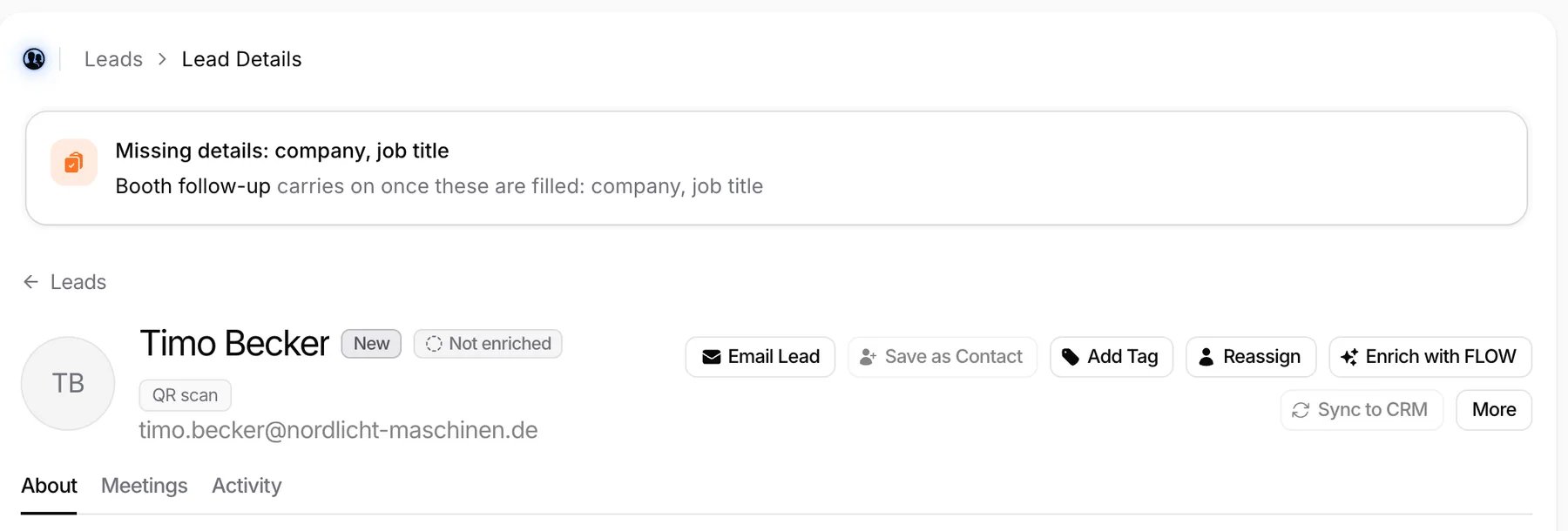
While it waits, the team sees it in three places:
The lead owner (and anyone else the step prompts) gets a notification listing what’s missing.
The event’s Flow tab lists the lead under Needs details.
The lead’s page shows a banner naming the flow and the missing details.
When someone fills in the details, the run carries on by itself. To move on without them, select Continue without the details on the run. The step then skips or stops the run, as it would after its time limit.
When a run fails
A run fails when a step fails on every attempt and that step is set to Stop the run. For example, the owner’s mailbox refused the draft or the CRM rejected a field. The failed step shows the error.
Fix the cause: reconnect the mailbox, fix the field mapping, top up AI credits.
Open the run and select Retry from failed step. The run picks up at the step that failed; the steps before it don’t run again.
The person who created the flow gets a notification when one of its runs fails.
Cancel or run again
Cancel run stops a run that’s running or waiting. Nothing after the current step happens.
Run again starts a new run of the live version for the same lead, even if the flow normally runs once per lead.
A lead has at most one run of a flow going at a time. Cancel a waiting run before you start another one for the same lead.
Start runs by hand
The buttons at the top of the Runs panel start runs on leads already at the event. They work for any published flow, including one whose trigger is Only when started by hand.
Run on a lead opens a search of the event’s leads. Pick one to start a run now, even if that lead has been through the flow before.
All leads runs every lead in the event that hasn’t been through this flow yet. Use it after you publish a flow on an event that already has leads.
All leads runs the flow on everyone at the event, captured on day one included. If the flow drafts emails or syncs to a CRM, every one of those leads gets a draft or a sync. Check the flow on one lead with Run on a lead first.
What doesn’t start a run
These never start a run on their own:
A flow that isn’t published, or is paused.
A lead captured before the flow was published, until you start it by hand.
A lead that has already been through the flow, unless the trigger allows Run again for the same lead.
A CSV import into the event, unless the trigger has Include imported leads on.
A tag added by another flow, for a flow that starts When a tag is added.
{"docsConfig":{"theme":"mint","$schema":"https://mintlify.com/docs.json","name":"Caard","colors":{"primary":"#8B5CF6","light":"#9B77EE","dark":"#7C4DEF"},"logo":{"light":"https://mintcdn.com/caard/4RTm3SeO7WHrMrw0/logo/logo.svg?fit=max\u0026auto=format\u0026n=4RTm3SeO7WHrMrw0\u0026q=85\u0026s=aca511477771cf8b2455a683c7c7bb5a","dark":"https://mintcdn.com/caard/4RTm3SeO7WHrMrw0/logo/logo.svg?fit=max\u0026auto=format\u0026n=4RTm3SeO7WHrMrw0\u0026q=85\u0026s=aca511477771cf8b2455a683c7c7bb5a"},"favicon":"https://mintcdn.com/caard/4RTm3SeO7WHrMrw0/favicon.png?fit=max\u0026auto=format\u0026n=4RTm3SeO7WHrMrw0\u0026q=85\u0026s=a8bc6c1cbec225ab91682c52d19f297c","footer":{"socials":{}},"icons":{"library":"fontawesome"},"styling":{"latex":false},"navigation":{"pages":[]}},"deployment":{"deploymentMetadataValue":{"subdomain":"caard","hasAudioNarration":false,"actualSubdomain":"caard","customDomains":["docs.caard.net"],"gitSource":{"type":"github","owner":"anipr2002","repo":"caard-main","deployBranch":"master","contentDirectory":"apps/docs","isPrivate":true,"mountPath":"","label":""},"entitlements":{"AI_CHAT":{"status":"DISABLED"}},"buildId":"6b0832ed62429249426af49a","clientVersion":"0.0.4336","searchFilterCounts":[{"language":"default","tag":"Integrations","count":12},{"language":"default","tag":"Managing leads","count":7},{"language":"default","tag":"Events","count":6},{"language":"default","tag":"Guides","count":6},{"language":"default","tag":"Settings","count":6},{"language":"default","tag":"Capturing leads","count":5},{"language":"default","tag":"Getting started","count":4},{"language":"default","tag":"Help","count":1},{"language":"default","tag":"Mobile app","count":1}]},"assistantConfig":{"enableAskAiButton":false,"enableStarterQuestions":false,"enableContextualStarterQuestions":false,"enableAskAiSearchBar":true},"basePath":"","hasChatPermissions":false,"hasWebMcpPermissions":false,"toggles":[{"name":"kill-isr","enabled":true,"variant":{"name":"disabled","enabled":false,"feature_enabled":true},"impressionData":false},{"name":"custom-rbac-roles","enabled":true,"variant":{"name":"disabled","enabled":false,"feature_enabled":true},"impressionData":false},{"name":"agent-mintlify-slack","enabled":true,"variant":{"name":"disabled","enabled":false,"feature_enabled":true},"impressionData":false},{"name":"agent-integrations-settings","enabled":true,"variant":{"name":"disabled","enabled":false,"feature_enabled":true},"impressionData":false},{"name":"rbac-expansion","enabled":true,"variant":{"name":"disabled","enabled":false,"feature_enabled":true},"impressionData":false},{"name":"automations-pr-grouping","enabled":true,"variant":{"name":"disabled","enabled":false,"feature_enabled":true},"impressionData":false},{"name":"custom-prefix","enabled":true,"variant":{"name":"disabled","enabled":false,"feature_enabled":true},"impressionData":false},{"name":"analytics-v7","enabled":true,"variant":{"name":"disabled","enabled":false,"feature_enabled":true},"impressionData":false},{"name":"user-flows-analytics","enabled":true,"variant":{"name":"disabled","enabled":false,"feature_enabled":true},"impressionData":false},{"name":"no-publish-flow","enabled":true,"variant":{"name":"disabled","enabled":false,"feature_enabled":true},"impressionData":false},{"name":"snapshot-serving-live","enabled":true,"variant":{"name":"disabled","enabled":false,"feature_enabled":true},"impressionData":false},{"name":"stripTemperatureMiddleware","enabled":true,"variant":{"name":"disabled","enabled":false,"feature_enabled":true},"impressionData":false},{"name":"support-platform-pylon-zendesk","enabled":true,"variant":{"name":"disabled","enabled":false,"feature_enabled":true},"impressionData":false},{"name":"snapshot-serving","enabled":true,"variant":{"name":"disabled","enabled":false,"feature_enabled":true},"impressionData":false},{"name":"instant-rollback","enabled":true,"variant":{"name":"disabled","enabled":false,"feature_enabled":true},"impressionData":false},{"name":"granular-notifications-server","enabled":true,"variant":{"name":"disabled","enabled":false,"feature_enabled":true},"impressionData":false},{"name":"granular-notifications","enabled":true,"variant":{"name":"disabled","enabled":false,"feature_enabled":true},"impressionData":false},{"name":"automations-fable","enabled":true,"variant":{"name":"disabled","enabled":false,"feature_enabled":true},"impressionData":false},{"name":"fixed-ai-action-pricing","enabled":true,"variant":{"name":"disabled","enabled":false,"feature_enabled":true},"impressionData":false},{"name":"site-roles","enabled":true,"variant":{"name":"disabled","enabled":false,"feature_enabled":true},"impressionData":false},{"name":"automation-resolve-merge-conflict","enabled":true,"variant":{"name":"disabled","enabled":false,"feature_enabled":true},"impressionData":false},{"name":"scoped-publishing","enabled":true,"variant":{"name":"disabled","enabled":false,"feature_enabled":true},"impressionData":false},{"name":"mintql","enabled":true,"variant":{"name":"disabled","enabled":false,"feature_enabled":true},"impressionData":false},{"name":"page-level-analytics","enabled":true,"variant":{"name":"disabled","enabled":false,"feature_enabled":true},"impressionData":false},{"name":"editor-version-history-v2","enabled":true,"variant":{"name":"disabled","enabled":false,"feature_enabled":true},"impressionData":false},{"name":"billing-page-v2","enabled":true,"variant":{"name":"disabled","enabled":false,"feature_enabled":true},"impressionData":false},{"name":"full-page-search","enabled":true,"variant":{"name":"disabled","enabled":false,"feature_enabled":true},"impressionData":false},{"name":"workspace-projects","enabled":true,"variant":{"name":"disabled","enabled":false,"feature_enabled":true},"impressionData":false},{"name":"fork-pr-previews","enabled":true,"variant":{"name":"disabled","enabled":false,"feature_enabled":true},"impressionData":false},{"name":"revalidation-jwt","enabled":true,"variant":{"name":"disabled","enabled":false,"feature_enabled":true},"impressionData":false},{"name":"hobby-abuse-scan","enabled":true,"variant":{"name":"disabled","enabled":false,"feature_enabled":true},"impressionData":false},{"name":"dashboard-inbox","enabled":true,"variant":{"name":"disabled","enabled":false,"feature_enabled":true},"impressionData":false},{"name":"turbopuffer-dual-write","enabled":true,"variant":{"name":"disabled","enabled":false,"feature_enabled":true},"impressionData":false},{"name":"approve-review-flow","enabled":true,"variant":{"name":"disabled","enabled":false,"feature_enabled":true},"impressionData":false},{"name":"editor-metadata","enabled":true,"variant":{"name":"disabled","enabled":false,"feature_enabled":true},"impressionData":false},{"name":"turbopuffer-serve","enabled":true,"variant":{"name":"disabled","enabled":false,"feature_enabled":true},"impressionData":false},{"name":"live-agents","enabled":true,"variant":{"name":"disabled","enabled":false,"feature_enabled":true},"impressionData":false},{"name":"starter-pricing","enabled":true,"variant":{"name":"control","enabled":true,"payload":{"type":"string","value":"control"},"feature_enabled":true},"impressionData":false},{"name":"llms-txt-v2","enabled":true,"variant":{"name":"disabled","enabled":false,"feature_enabled":true},"impressionData":false},{"name":"wildcard-email-auth","enabled":true,"variant":{"name":"disabled","enabled":false,"feature_enabled":true},"impressionData":false}],"starterQuestions":[],"googleFontsInlined":false},"customCss":[]}
{"page":{"pagePath":"events/flow-runs","slug":"/events/flow-runs","pageMetadata":{"title":"Flow runs","description":"Follow each lead through a flow, fill in what it's waiting for, and retry, cancel or start runs by hand.","icon":"play","iconType":"solid","href":"/events/flow-runs"},"description":{"compiledSource":"\"use strict\";\nconst {jsx: _jsx} = arguments[0];\nconst {useMDXComponents: _provideComponents} = arguments[0];\nfunction _createMdxContent(props) {\n const _components = {\n p: \"p\",\n ..._provideComponents(),\n ...props.components\n };\n return _jsx(_components.p, {\n children: \"Follow each lead through a flow, fill in what it’s waiting for, and retry, cancel or start runs by hand.\"\n });\n}\nfunction MDXContent(props = {}) {\n const {wrapper: MDXLayout} = {\n ..._provideComponents(),\n ...props.components\n };\n return MDXLayout ? _jsx(MDXLayout, {\n ...props,\n children: _jsx(_createMdxContent, {\n ...props\n })\n }) : _createMdxContent(props);\n}\nreturn {\n default: MDXContent\n};\n","frontmatter":{},"scope":{}},"pageType":"default","mdx":{"mdxSource":{"compiledSource":"\"use strict\";const{Fragment:_Fragment,jsx:_jsx,jsxs:_jsxs}=arguments[0];const{useMDXComponents:_provideComponents}=arguments[0];function _createMdxContent(props){const _components={a:`a`,em:`em`,li:`li`,ol:`ol`,p:`p`,strong:`strong`,tbody:`tbody`,td:`td`,th:`th`,thead:`thead`,tr:`tr`,ul:`ul`,..._provideComponents(),...props.components},{Frame,Heading,OptimizedImage,Table,Warning}=_components;if(!Frame)_missingMdxReference(`Frame`,true);if(!Heading)_missingMdxReference(`Heading`,true);if(!OptimizedImage)_missingMdxReference(`OptimizedImage`,true);if(!Table)_missingMdxReference(`Table`,true);if(!Warning)_missingMdxReference(`Warning`,true);return _jsxs(_Fragment,{children:[_jsxs(_components.p,{children:[`Each time a lead starts a published flow, CAARD makes a `,_jsx(_components.strong,{children:`run`}),`: one lead’s trip through that flow’s steps. Runs show you what a flow did with every lead, and they’re where you fix things when something goes wrong.`]}),`\n`,_jsx(Heading,{level:`2`,id:`open-the-runs`,children:`Open the runs`}),`\n`,_jsxs(_components.p,{children:[`In the flow editor, select the list button at the top right, next to the `,_jsx(_components.strong,{children:`On`}),` switch. The `,_jsx(_components.strong,{children:`Runs`}),` panel lists the flow’s runs, newest first, with the lead, what started the run and its status. Filter by `,_jsx(_components.strong,{children:`Running`}),`, `,_jsx(_components.strong,{children:`Waiting`}),`, `,_jsx(_components.strong,{children:`Failed`}),` or `,_jsx(_components.strong,{children:`Done`}),`.`]}),`\n`,_jsx(Frame,{children:_jsx(OptimizedImage,{src:`https://mintcdn.com/caard/JaVl6GuuYcad3cHq/images/flows/runs-list.webp?fit=max\u0026auto=format\u0026n=JaVl6GuuYcad3cHq\u0026q=85\u0026s=74d82b98284017fca258880e37d4bdff`,alt:`The Runs panel with Run on a lead and All leads buttons, status filters, and four runs: Anna Schulz done, Timo Becker waiting, Lena Vogt done, Jonas Petersen done`,width:`380`,\"data-og-width\":`749`,\"data-og-height\":`760`,\"data-path\":`images/flows/runs-list.webp`,\"data-optimize\":`true`,\"data-opv\":`3`,srcset:`https://mintcdn.com/caard/JaVl6GuuYcad3cHq/images/flows/runs-list.webp?w=280\u0026fit=max\u0026auto=format\u0026n=JaVl6GuuYcad3cHq\u0026q=85\u0026s=6a8ba26f7299c6cc483a4b53c713e906 280w, https://mintcdn.com/caard/JaVl6GuuYcad3cHq/images/flows/runs-list.webp?w=560\u0026fit=max\u0026auto=format\u0026n=JaVl6GuuYcad3cHq\u0026q=85\u0026s=05a4f1bd22b9f4300b0b7ece9a7c1023 560w, https://mintcdn.com/caard/JaVl6GuuYcad3cHq/images/flows/runs-list.webp?w=840\u0026fit=max\u0026auto=format\u0026n=JaVl6GuuYcad3cHq\u0026q=85\u0026s=8db0e0ee39ddc100c286ecd6048cb262 840w, https://mintcdn.com/caard/JaVl6GuuYcad3cHq/images/flows/runs-list.webp?w=1100\u0026fit=max\u0026auto=format\u0026n=JaVl6GuuYcad3cHq\u0026q=85\u0026s=91c4a6c2c69b97741f5d17c3e734c319 1100w, https://mintcdn.com/caard/JaVl6GuuYcad3cHq/images/flows/runs-list.webp?w=1650\u0026fit=max\u0026auto=format\u0026n=JaVl6GuuYcad3cHq\u0026q=85\u0026s=80977ba4cd01d71055e72ed0557474d4 1650w, https://mintcdn.com/caard/JaVl6GuuYcad3cHq/images/flows/runs-list.webp?w=2500\u0026fit=max\u0026auto=format\u0026n=JaVl6GuuYcad3cHq\u0026q=85\u0026s=45eb9f302f48537413b023663ce62bcb 2500w`})}),`\n`,_jsxs(Table,{children:[_jsx(_components.thead,{children:_jsxs(_components.tr,{children:[_jsx(_components.th,{children:`Status`}),_jsx(_components.th,{children:`Means`})]})}),_jsxs(_components.tbody,{children:[_jsxs(_components.tr,{children:[_jsx(_components.td,{children:_jsx(_components.strong,{children:`Queued`})}),_jsx(_components.td,{children:`About to start.`})]}),_jsxs(_components.tr,{children:[_jsx(_components.td,{children:_jsx(_components.strong,{children:`Running`})}),_jsx(_components.td,{children:`Working through its steps.`})]}),_jsxs(_components.tr,{children:[_jsx(_components.td,{children:_jsx(_components.strong,{children:`Waiting`})}),_jsx(_components.td,{children:`Paused on a Wait step, or waiting for details the lead is missing.`})]}),_jsxs(_components.tr,{children:[_jsx(_components.td,{children:_jsx(_components.strong,{children:`Done`})}),_jsx(_components.td,{children:`Reached the end of its path. A lead that a filter stopped counts as done.`})]}),_jsxs(_components.tr,{children:[_jsx(_components.td,{children:_jsx(_components.strong,{children:`Failed`})}),_jsx(_components.td,{children:`A step failed and the run stopped.`})]}),_jsxs(_components.tr,{children:[_jsx(_components.td,{children:_jsx(_components.strong,{children:`Canceled`})}),_jsx(_components.td,{children:`Someone canceled it, or the flow was deleted.`})]})]})]}),`\n`,_jsx(Heading,{level:`2`,id:`follow-one-lead`,children:`Follow one lead`}),`\n`,_jsx(_components.p,{children:`Select a run. The canvas shows the version the run used, and the steps light up as the lead reaches them; the path it took is drawn in green. The panel lists each step with what it did, in plain words.`}),`\n`,_jsx(Frame,{children:_jsx(OptimizedImage,{src:`https://mintcdn.com/caard/JaVl6GuuYcad3cHq/images/flows/run-done.webp?fit=max\u0026auto=format\u0026n=JaVl6GuuYcad3cHq\u0026q=85\u0026s=87559e0160cadb09d7229812a6da12ed`,alt:`A finished run for Jonas Petersen: passed the filter, went to Decision makers, the executive follow-up draft is ready in the app, and 1 person was notified. The path is green on the canvas`,\"data-og-width\":`1800`,width:`1800`,\"data-og-height\":`1125`,height:`1125`,\"data-path\":`images/flows/run-done.webp`,\"data-optimize\":`true`,\"data-opv\":`3`,srcset:`https://mintcdn.com/caard/JaVl6GuuYcad3cHq/images/flows/run-done.webp?w=280\u0026fit=max\u0026auto=format\u0026n=JaVl6GuuYcad3cHq\u0026q=85\u0026s=9724d899c3404434ae84060bee7701ae 280w, https://mintcdn.com/caard/JaVl6GuuYcad3cHq/images/flows/run-done.webp?w=560\u0026fit=max\u0026auto=format\u0026n=JaVl6GuuYcad3cHq\u0026q=85\u0026s=ed850953463c99e5af64401eb7625579 560w, https://mintcdn.com/caard/JaVl6GuuYcad3cHq/images/flows/run-done.webp?w=840\u0026fit=max\u0026auto=format\u0026n=JaVl6GuuYcad3cHq\u0026q=85\u0026s=d6a09afa5c4d878f1e9c3c590b1cd769 840w, https://mintcdn.com/caard/JaVl6GuuYcad3cHq/images/flows/run-done.webp?w=1100\u0026fit=max\u0026auto=format\u0026n=JaVl6GuuYcad3cHq\u0026q=85\u0026s=1049d008ed3834ac737fa7bdd0134c99 1100w, https://mintcdn.com/caard/JaVl6GuuYcad3cHq/images/flows/run-done.webp?w=1650\u0026fit=max\u0026auto=format\u0026n=JaVl6GuuYcad3cHq\u0026q=85\u0026s=26d2cc30289d2a70d03c2102ea36e6e2 1650w, https://mintcdn.com/caard/JaVl6GuuYcad3cHq/images/flows/run-done.webp?w=2500\u0026fit=max\u0026auto=format\u0026n=JaVl6GuuYcad3cHq\u0026q=85\u0026s=fa1cef83146b5d8d1436aaab87837a24 2500w`})}),`\n`,_jsx(_components.p,{children:`Some of the things a step reports:`}),`\n`,_jsxs(_components.ul,{children:[`\n`,_jsxs(_components.li,{children:[_jsx(_components.strong,{children:`Split by lead type`}),`: `,_jsx(_components.em,{children:`Went to “Decision makers”`}),`, or for an AI split `,_jsx(_components.em,{children:`AI picked “Decision makers”`}),` with its reason.`]}),`\n`,_jsxs(_components.li,{children:[_jsx(_components.strong,{children:`Filter`}),`: `,_jsx(_components.em,{children:`Passed the filter`}),` or `,_jsx(_components.em,{children:`Filtered out here`}),`.`]}),`\n`,_jsxs(_components.li,{children:[_jsx(_components.strong,{children:`Sync to CRM`}),`: `,_jsx(_components.em,{children:`Synced to HubSpot`}),`, or `,_jsx(_components.em,{children:`Failed for HubSpot`}),` with the CRM’s error.`]}),`\n`,_jsxs(_components.li,{children:[_jsx(_components.strong,{children:`AI draft`}),`: `,_jsx(_components.em,{children:`Draft is in the owner’s mailbox`}),` or `,_jsx(_components.em,{children:`Draft is ready in the app`}),`.`]}),`\n`,_jsxs(_components.li,{children:[_jsx(_components.strong,{children:`Notify`}),`: `,_jsx(_components.em,{children:`Notified 2 people`}),`.`]}),`\n`]}),`\n`,_jsxs(_components.p,{children:[`Select `,_jsx(_components.strong,{children:`Back to editing`}),` at the top of the canvas to return to the draft.`]}),`\n`,_jsx(Heading,{level:`2`,id:`waiting-for-details`,children:`Waiting for details`}),`\n`,_jsxs(_components.p,{children:[`A step with `,_jsx(_components.a,{href:`/events/flow-steps#needs-before-it-runs`,children:`Needs before it runs`}),` waits until the lead has the details it needs. The run shows what’s missing and when the step gives up.`]}),`\n`,_jsx(Frame,{children:_jsx(OptimizedImage,{src:`https://mintcdn.com/caard/JaVl6GuuYcad3cHq/images/flows/run-waiting.webp?fit=max\u0026auto=format\u0026n=JaVl6GuuYcad3cHq\u0026q=85\u0026s=fc8f94eb76b7d99088aca1c09797b34e`,alt:`A waiting run for Timo Becker: matched no lead type and went to Everyone else; the Standard follow-up is waiting for company and job title, gives up in 2 days, with a Continue without the details button`,\"data-og-width\":`1800`,width:`1800`,\"data-og-height\":`1125`,height:`1125`,\"data-path\":`images/flows/run-waiting.webp`,\"data-optimize\":`true`,\"data-opv\":`3`,srcset:`https://mintcdn.com/caard/JaVl6GuuYcad3cHq/images/flows/run-waiting.webp?w=280\u0026fit=max\u0026auto=format\u0026n=JaVl6GuuYcad3cHq\u0026q=85\u0026s=496a7aec53137ab6455ff6743a281a60 280w, https://mintcdn.com/caard/JaVl6GuuYcad3cHq/images/flows/run-waiting.webp?w=560\u0026fit=max\u0026auto=format\u0026n=JaVl6GuuYcad3cHq\u0026q=85\u0026s=334082e2a603fbe2f0c0531947625ec7 560w, https://mintcdn.com/caard/JaVl6GuuYcad3cHq/images/flows/run-waiting.webp?w=840\u0026fit=max\u0026auto=format\u0026n=JaVl6GuuYcad3cHq\u0026q=85\u0026s=22efd72744c8703950cfdf30e1322a94 840w, https://mintcdn.com/caard/JaVl6GuuYcad3cHq/images/flows/run-waiting.webp?w=1100\u0026fit=max\u0026auto=format\u0026n=JaVl6GuuYcad3cHq\u0026q=85\u0026s=bba0fd1b0d82aa6c054d4c2860f17f8f 1100w, https://mintcdn.com/caard/JaVl6GuuYcad3cHq/images/flows/run-waiting.webp?w=1650\u0026fit=max\u0026auto=format\u0026n=JaVl6GuuYcad3cHq\u0026q=85\u0026s=baed0a6bc4f4ea698e31e483b427465e 1650w, https://mintcdn.com/caard/JaVl6GuuYcad3cHq/images/flows/run-waiting.webp?w=2500\u0026fit=max\u0026auto=format\u0026n=JaVl6GuuYcad3cHq\u0026q=85\u0026s=a4edd1b112ac36328cea851fb64e7dcf 2500w`})}),`\n`,_jsx(_components.p,{children:`While it waits, the team sees it in three places:`}),`\n`,_jsxs(_components.ul,{children:[`\n`,_jsx(_components.li,{children:`The lead owner (and anyone else the step prompts) gets a notification listing what’s missing.`}),`\n`,_jsxs(_components.li,{children:[`The event’s `,_jsx(_components.strong,{children:`Flow`}),` tab lists the lead under `,_jsx(_components.strong,{children:`Needs details`}),`.`]}),`\n`,_jsx(_components.li,{children:`The lead’s page shows a banner naming the flow and the missing details.`}),`\n`]}),`\n`,_jsx(Frame,{children:_jsx(OptimizedImage,{src:`https://mintcdn.com/caard/JaVl6GuuYcad3cHq/images/flows/lead-banner.webp?fit=max\u0026auto=format\u0026n=JaVl6GuuYcad3cHq\u0026q=85\u0026s=054aa69758435b8aa7b4fd92815f50fb`,alt:`The banner at the top of Timo Becker's lead page: Missing details: company, job title. Booth follow-up carries on once these are filled`,\"data-og-width\":`1800`,width:`1800`,\"data-og-height\":`610`,height:`610`,\"data-path\":`images/flows/lead-banner.webp`,\"data-optimize\":`true`,\"data-opv\":`3`,srcset:`https://mintcdn.com/caard/JaVl6GuuYcad3cHq/images/flows/lead-banner.webp?w=280\u0026fit=max\u0026auto=format\u0026n=JaVl6GuuYcad3cHq\u0026q=85\u0026s=836f0431eac66a77542cefd8865f93ca 280w, https://mintcdn.com/caard/JaVl6GuuYcad3cHq/images/flows/lead-banner.webp?w=560\u0026fit=max\u0026auto=format\u0026n=JaVl6GuuYcad3cHq\u0026q=85\u0026s=c53771bd84676d350ae4ee8d1152aef8 560w, https://mintcdn.com/caard/JaVl6GuuYcad3cHq/images/flows/lead-banner.webp?w=840\u0026fit=max\u0026auto=format\u0026n=JaVl6GuuYcad3cHq\u0026q=85\u0026s=ee150acdef7c0325ac42c2d18dad7c91 840w, https://mintcdn.com/caard/JaVl6GuuYcad3cHq/images/flows/lead-banner.webp?w=1100\u0026fit=max\u0026auto=format\u0026n=JaVl6GuuYcad3cHq\u0026q=85\u0026s=e2e4436a68807846abded3c8116b5e1e 1100w, https://mintcdn.com/caard/JaVl6GuuYcad3cHq/images/flows/lead-banner.webp?w=1650\u0026fit=max\u0026auto=format\u0026n=JaVl6GuuYcad3cHq\u0026q=85\u0026s=029a279e1311ad63d54ff7996c041cc5 1650w, https://mintcdn.com/caard/JaVl6GuuYcad3cHq/images/flows/lead-banner.webp?w=2500\u0026fit=max\u0026auto=format\u0026n=JaVl6GuuYcad3cHq\u0026q=85\u0026s=cada29e44b6d8e754c3e69653e6f02c0 2500w`})}),`\n`,_jsxs(_components.p,{children:[`When someone fills in the details, the run carries on by itself. To move on without them, select `,_jsx(_components.strong,{children:`Continue without the details`}),` on the run. The step then skips or stops the run, as it would after its time limit.`]}),`\n`,_jsx(Heading,{level:`2`,id:`when-a-run-fails`,children:`When a run fails`}),`\n`,_jsxs(_components.p,{children:[`A run fails when a step fails on every attempt and that step is set to `,_jsx(_components.strong,{children:`Stop the run`}),`. For example, the owner’s mailbox refused the draft or the CRM rejected a field. The failed step shows the error.`]}),`\n`,_jsxs(_components.ol,{children:[`\n`,_jsx(_components.li,{children:`Fix the cause: reconnect the mailbox, fix the field mapping, top up AI credits.`}),`\n`,_jsxs(_components.li,{children:[`Open the run and select `,_jsx(_components.strong,{children:`Retry from failed step`}),`. The run picks up at the step that failed; the steps before it don’t run again.`]}),`\n`]}),`\n`,_jsx(_components.p,{children:`The person who created the flow gets a notification when one of its runs fails.`}),`\n`,_jsx(Heading,{level:`2`,id:`cancel-or-run-again`,children:`Cancel or run again`}),`\n`,_jsxs(_components.ul,{children:[`\n`,_jsxs(_components.li,{children:[_jsx(_components.strong,{children:`Cancel run`}),` stops a run that’s running or waiting. Nothing after the current step happens.`]}),`\n`,_jsxs(_components.li,{children:[_jsx(_components.strong,{children:`Run again`}),` starts a new run of the live version for the same lead, even if the flow normally runs once per lead.`]}),`\n`]}),`\n`,_jsx(_components.p,{children:`A lead has at most one run of a flow going at a time. Cancel a waiting run before you start another one for the same lead.`}),`\n`,_jsx(Heading,{level:`2`,id:`start-runs-by-hand`,children:`Start runs by hand`}),`\n`,_jsxs(_components.p,{children:[`The buttons at the top of the Runs panel start runs on leads already at the event. They work for any published flow, including one whose trigger is `,_jsx(_components.strong,{children:`Only when started by hand`}),`.`]}),`\n`,_jsxs(_components.ul,{children:[`\n`,_jsxs(_components.li,{children:[_jsx(_components.strong,{children:`Run on a lead`}),` opens a search of the event’s leads. Pick one to start a run now, even if that lead has been through the flow before.`]}),`\n`,_jsxs(_components.li,{children:[_jsx(_components.strong,{children:`All leads`}),` runs every lead in the event that hasn’t been through this flow yet. Use it after you publish a flow on an event that already has leads.`]}),`\n`]}),`\n`,_jsx(Frame,{children:_jsx(OptimizedImage,{src:`https://mintcdn.com/caard/JaVl6GuuYcad3cHq/images/flows/run-on-lead.webp?fit=max\u0026auto=format\u0026n=JaVl6GuuYcad3cHq\u0026q=85\u0026s=6e11d0980c80a828ab177a1d85d3f973`,alt:`The Run on a lead dialog listing the event's leads with their company and email; Timo Becker is marked Needs details`,\"data-og-width\":`899`,width:`899`,\"data-og-height\":`654`,height:`654`,\"data-path\":`images/flows/run-on-lead.webp`,\"data-optimize\":`true`,\"data-opv\":`3`,srcset:`https://mintcdn.com/caard/JaVl6GuuYcad3cHq/images/flows/run-on-lead.webp?w=280\u0026fit=max\u0026auto=format\u0026n=JaVl6GuuYcad3cHq\u0026q=85\u0026s=bd03bfe34301aa2d80b0c7ad729e14d7 280w, https://mintcdn.com/caard/JaVl6GuuYcad3cHq/images/flows/run-on-lead.webp?w=560\u0026fit=max\u0026auto=format\u0026n=JaVl6GuuYcad3cHq\u0026q=85\u0026s=0954ee3b591fb0f3f0d6ebbd07f1312f 560w, https://mintcdn.com/caard/JaVl6GuuYcad3cHq/images/flows/run-on-lead.webp?w=840\u0026fit=max\u0026auto=format\u0026n=JaVl6GuuYcad3cHq\u0026q=85\u0026s=aa4a64e84c9edbe77c704490712bdfca 840w, https://mintcdn.com/caard/JaVl6GuuYcad3cHq/images/flows/run-on-lead.webp?w=1100\u0026fit=max\u0026auto=format\u0026n=JaVl6GuuYcad3cHq\u0026q=85\u0026s=74ee8a5ad7c6af0ef00cd4530750d555 1100w, https://mintcdn.com/caard/JaVl6GuuYcad3cHq/images/flows/run-on-lead.webp?w=1650\u0026fit=max\u0026auto=format\u0026n=JaVl6GuuYcad3cHq\u0026q=85\u0026s=8ee0a40eaafdbc4fe2707a05ef40f19b 1650w, https://mintcdn.com/caard/JaVl6GuuYcad3cHq/images/flows/run-on-lead.webp?w=2500\u0026fit=max\u0026auto=format\u0026n=JaVl6GuuYcad3cHq\u0026q=85\u0026s=6edd0e188ce7966946292c27d1f04d68 2500w`})}),`\n`,_jsx(Warning,{children:_jsxs(_components.p,{children:[_jsx(_components.strong,{children:`All leads`}),` runs the flow on everyone at the event, captured on day one included. If the flow drafts emails or syncs to a CRM, every one of those leads gets a draft or a sync. Check the flow on one lead with `,_jsx(_components.strong,{children:`Run on a lead`}),` first.`]})}),`\n`,_jsx(Heading,{level:`2`,id:`what-doesn’t-start-a-run`,children:`What doesn’t start a run`}),`\n`,_jsx(_components.p,{children:`These never start a run on their own:`}),`\n`,_jsxs(_components.ul,{children:[`\n`,_jsx(_components.li,{children:`A flow that isn’t published, or is paused.`}),`\n`,_jsx(_components.li,{children:`A lead captured before the flow was published, until you start it by hand.`}),`\n`,_jsxs(_components.li,{children:[`A lead that has already been through the flow, unless the trigger allows `,_jsx(_components.strong,{children:`Run again for the same lead`}),`.`]}),`\n`,_jsxs(_components.li,{children:[`A CSV import into the event, unless the trigger has `,_jsx(_components.strong,{children:`Include imported leads`}),` on.`]}),`\n`,_jsxs(_components.li,{children:[`A tag added by another flow, for a flow that starts `,_jsx(_components.strong,{children:`When a tag is added`}),`.`]}),`\n`]})]})}function MDXContent(props={}){const{wrapper:MDXLayout}={..._provideComponents(),...props.components};return MDXLayout?_jsx(MDXLayout,{...props,children:_jsx(_createMdxContent,{...props})}):_createMdxContent(props)}return{default:MDXContent};function _missingMdxReference(id,component){throw new Error(`Expected `+(component?`component`:`object`)+\" `\"+id+\"` to be defined: you likely forgot to import, pass, or provide it.\")}","frontmatter":{},"scope":{"config":{},"pageMetadata":{"title":"Flow runs","description":"Follow each lead through a flow, fill in what it's waiting for, and retry, cancel or start runs by hand.","icon":"play","iconType":"solid","href":"/events/flow-runs"}}},"mdxSourceWithNoJs":null},"mdxExtracts":{"tableOfContents":[{"title":"Open the runs","slug":"open-the-runs","depth":2,"children":[]},{"title":"Follow one lead","slug":"follow-one-lead","depth":2,"children":[]},{"title":"Waiting for details","slug":"waiting-for-details","depth":2,"children":[]},{"title":"When a run fails","slug":"when-a-run-fails","depth":2,"children":[]},{"title":"Cancel or run again","slug":"cancel-or-run-again","depth":2,"children":[]},{"title":"Start runs by hand","slug":"start-runs-by-hand","depth":2,"children":[]},{"title":"What doesn’t start a run","slug":"what-doesn’t-start-a-run","depth":2,"children":[]}],"codeExamples":{}},"jsLinks":[],"subdomain":"caard","siteName":"Caard","title":"Flow runs - Caard","contextualStarterQuestions":[],"navMaps":{"firstHrefInVersion":{},"firstHrefInLanguage":{}},"lastModified":"2026-11-24T01:32:25.381Z","originalFileLocation":"events/flow-runs.mdx"},"headHtml":"\u003cscript data-mint-head>(function(){var d=document.documentElement,p=null;if(!p){try{p=localStorage.getItem(\"isDarkMode\")}catch(e){}if(p==='true')p='dark';else if(p==='false')p='light';if(p!=='light'\u0026\u0026p!=='dark'\u0026\u0026p!=='system')p=\"system\"}var r=p==='system'?(matchMedia(\"(prefers-color-scheme: dark)\").matches?'dark':'light'):p;d.classList.remove(r==='dark'?'light':'dark');d.classList.add(r);d.setAttribute(\"data-theme-preference\",p)})();\u003c/script>\u003cmeta data-mint-head name=\"description\" content=\"Follow each lead through a flow, fill in what it\u0026#x27;s waiting for, and retry, cancel or start runs by hand.\">\u003cmeta data-mint-head name=\"application-name\" content=\"Caard\">\u003cmeta data-mint-head name=\"generator\" content=\"Mintlify\">\u003clink data-mint-head rel=\"icon\" type=\"image/png\" sizes=\"192x192\" href=\"/mintlify-assets/_mintlify/favicons/caard/knGme4UvEoNhWqcJ/_generated/favicon/android-chrome-192x192.png\" media=\"(prefers-color-scheme: light)\">\u003clink data-mint-head rel=\"apple-touch-icon\" type=\"image/png\" sizes=\"180x180\" href=\"/mintlify-assets/_mintlify/favicons/caard/knGme4UvEoNhWqcJ/_generated/favicon/apple-touch-icon.png\">\u003clink data-mint-head rel=\"icon\" type=\"image/png\" sizes=\"16x16\" href=\"/mintlify-assets/_mintlify/favicons/caard/knGme4UvEoNhWqcJ/_generated/favicon/favicon-16x16.png\" media=\"(prefers-color-scheme: light)\">\u003clink data-mint-head rel=\"icon\" type=\"image/png\" sizes=\"32x32\" href=\"/mintlify-assets/_mintlify/favicons/caard/knGme4UvEoNhWqcJ/_generated/favicon/favicon-32x32.png\" media=\"(prefers-color-scheme: light)\">\u003clink data-mint-head rel=\"shortcut icon\" type=\"image/x-icon\" href=\"/mintlify-assets/_mintlify/favicons/caard/knGme4UvEoNhWqcJ/_generated/favicon/favicon.ico\" media=\"(prefers-color-scheme: light)\">\u003clink data-mint-head rel=\"icon\" type=\"image/png\" sizes=\"192x192\" href=\"/mintlify-assets/_mintlify/favicons/caard/knGme4UvEoNhWqcJ/_generated/favicon-dark/android-chrome-192x192.png\" media=\"(prefers-color-scheme: dark)\">\u003clink data-mint-head rel=\"icon\" type=\"image/png\" sizes=\"16x16\" href=\"/mintlify-assets/_mintlify/favicons/caard/knGme4UvEoNhWqcJ/_generated/favicon-dark/favicon-16x16.png\" media=\"(prefers-color-scheme: dark)\">\u003clink data-mint-head rel=\"icon\" type=\"image/png\" sizes=\"32x32\" href=\"/mintlify-assets/_mintlify/favicons/caard/knGme4UvEoNhWqcJ/_generated/favicon-dark/favicon-32x32.png\" media=\"(prefers-color-scheme: dark)\">\u003clink data-mint-head rel=\"shortcut icon\" type=\"image/x-icon\" href=\"/mintlify-assets/_mintlify/favicons/caard/knGme4UvEoNhWqcJ/_generated/favicon-dark/favicon.ico\" media=\"(prefers-color-scheme: dark)\">\u003cmeta data-mint-head property=\"og:title\" content=\"Flow runs - Caard\">\u003cmeta data-mint-head property=\"og:description\" content=\"Follow each lead through a flow, fill in what it\u0026#x27;s waiting for, and retry, cancel or start runs by hand.\">\u003cmeta data-mint-head property=\"og:site_name\" content=\"Caard\">\u003cmeta data-mint-head property=\"og:url\" content=\"https://docs.caard.net/events/flow-runs\">\u003cmeta data-mint-head property=\"og:type\" content=\"website\">\u003cmeta data-mint-head property=\"og:image\" content=\"https://caard.mintlify.site/_mintlify/api/og/v2?division=Events\u0026amp;title=Flow+runs\u0026amp;description=Follow+each+lead+through+a+flow%2C+fill+in+what+it%27s+waiting+for%2C+and+retry%2C+cancel+or+start+runs+by+hand.\u0026amp;theme=39acb28a83e47ec8fc4aef61\u0026amp;signature=d1378c23ad7dbda0b97a39bb51aca780b00357040f9b58aa36c4dae5d1bef653\">\u003cmeta data-mint-head property=\"og:image:width\" content=\"1200\">\u003cmeta data-mint-head property=\"og:image:height\" content=\"630\">\u003cmeta data-mint-head name=\"twitter:card\" content=\"summary_large_image\">\u003cmeta data-mint-head name=\"twitter:title\" content=\"Flow runs - Caard\">\u003cmeta data-mint-head name=\"twitter:description\" content=\"Follow each lead through a flow, fill in what it\u0026#x27;s waiting for, and retry, cancel or start runs by hand.\">\u003cmeta data-mint-head name=\"twitter:image\" content=\"https://caard.mintlify.site/_mintlify/api/og/v2?division=Events\u0026amp;title=Flow+runs\u0026amp;description=Follow+each+lead+through+a+flow%2C+fill+in+what+it%27s+waiting+for%2C+and+retry%2C+cancel+or+start+runs+by+hand.\u0026amp;theme=39acb28a83e47ec8fc4aef61\u0026amp;signature=d1378c23ad7dbda0b97a39bb51aca780b00357040f9b58aa36c4dae5d1bef653\">\u003cmeta data-mint-head name=\"twitter:image:width\" content=\"1200\">\u003cmeta data-mint-head name=\"twitter:image:height\" content=\"630\">\u003cmeta data-mint-head name=\"msapplication-config\" content=\"/mintlify-assets/_mintlify/favicons/caard/knGme4UvEoNhWqcJ/_generated/favicon/browserconfig.xml\">\u003cmeta data-mint-head name=\"apple-mobile-web-app-title\" content=\"Caard\">\u003cmeta data-mint-head name=\"msapplication-TileColor\" content=\"#8B5CF6\">\u003clink data-mint-head rel=\"canonical\" href=\"https://docs.caard.net/events/flow-runs\">\u003clink data-mint-head rel=\"alternate\" type=\"application/xml\" href=\"/sitemap.xml\">\u003clink data-mint-head rel=\"alternate\" type=\"text/markdown\" href=\"/events/flow-runs.md\">\u003cscript data-mint-head type=\"application/ld+json\">{\"@context\":\"https://schema.org\",\"@graph\":[{\"@type\":\"Organization\",\"@id\":\"https://docs.caard.net/#organization\",\"name\":\"Caard\",\"url\":\"https://docs.caard.net\",\"logo\":{\"@type\":\"ImageObject\",\"url\":\"https://mintcdn.com/caard/4RTm3SeO7WHrMrw0/logo/logo.svg?fit=max\u0026auto=format\u0026n=4RTm3SeO7WHrMrw0\u0026q=85\u0026s=aca511477771cf8b2455a683c7c7bb5a\"}},{\"@type\":\"WebSite\",\"@id\":\"https://docs.caard.net#website\",\"name\":\"Caard\",\"url\":\"https://docs.caard.net\",\"publisher\":{\"@id\":\"https://docs.caard.net/#organization\"}},{\"@type\":\"WebPage\",\"@id\":\"https://docs.caard.net/events/flow-runs#webpage\",\"url\":\"https://docs.caard.net/events/flow-runs\",\"name\":\"Flow runs\",\"description\":\"Follow each lead through a flow, fill in what it's waiting for, and retry, cancel or start runs by hand.\",\"dateModified\":\"2026-11-24T01:32:25.381Z\",\"isPartOf\":{\"@id\":\"https://docs.caard.net#website\"},\"breadcrumb\":{\"@id\":\"https://docs.caard.net/events/flow-runs#breadcrumb\"}},{\"@type\":\"BreadcrumbList\",\"@id\":\"https://docs.caard.net/events/flow-runs#breadcrumb\",\"itemListElement\":[{\"@type\":\"ListItem\",\"position\":1,\"name\":\"Events\",\"item\":\"https://docs.caard.net/events/creating-events\"},{\"@type\":\"ListItem\",\"position\":2,\"name\":\"Flow runs\",\"item\":\"https://docs.caard.net/events/flow-runs\"}]},{\"@type\":[\"Article\",\"TechArticle\"],\"@id\":\"https://docs.caard.net/events/flow-runs#article\",\"headline\":\"Flow runs\",\"name\":\"Flow runs\",\"description\":\"Follow each lead through a flow, fill in what it's waiting for, and retry, cancel or start runs by hand.\",\"url\":\"https://docs.caard.net/events/flow-runs\",\"mainEntityOfPage\":{\"@id\":\"https://docs.caard.net/events/flow-runs#webpage\"},\"dateModified\":\"2026-11-24T01:32:25.381Z\",\"publisher\":{\"@id\":\"https://docs.caard.net/#organization\"},\"isPartOf\":{\"@id\":\"https://docs.caard.net#website\"}}]}\u003c/script>\u003cscript data-mint-head type=\"application/ld+json\">{\"@context\":\"https://schema.org\",\"@type\":\"WebSite\",\"name\":\"Caard\",\"publisher\":{\"@type\":\"Organization\",\"name\":\"Caard\"},\"provider\":{\"@type\":\"Organization\",\"name\":\"Mintlify\",\"url\":\"https://mintlify.com\"}}\u003c/script>","agentPointerHref":"/events/flow-runs.md","siteName":"Caard","nav":{"global":null,"groups":[{"group":"Getting started","pages":[{"title":"Welcome to CAARD","icon":"hand","iconType":"solid","href":"/index"},{"title":"Joining your workspace","icon":"door-open","iconType":"solid","href":"/getting-started/joining-your-workspace"},{"title":"Your profile","icon":"user","iconType":"solid","href":"/getting-started/your-profile"},{"title":"Video tutorials","icon":"circle-play","iconType":"solid","href":"/getting-started/video-tutorials"}]},{"group":"Guides","pages":[{"title":"Event custom fields in HubSpot","icon":"map","iconType":"solid","href":"/guides/event-custom-fields-hubspot"},{"title":"Fill your CRM's custom fields from CAARD","icon":"table-columns","iconType":"solid","href":"/guides/crm-custom-fields"},{"title":"Follow up by lead type","icon":"code-branch","iconType":"solid","href":"/guides/flow-follow-up-by-lead-type"},{"title":"Follow up within the hour","icon":"clock","iconType":"solid","href":"/guides/flow-follow-up-within-the-hour"},{"title":"Keep incomplete leads out of your CRM","icon":"shield-check","iconType":"solid","href":"/guides/flow-crm-only-when-complete"},{"title":"Act on a tag: demo requests","icon":"tag","iconType":"solid","href":"/guides/flow-demo-requests"}]},{"group":"Capturing leads","pages":[{"title":"Ways to capture leads","icon":"user-plus","iconType":"solid","href":"/capture/overview"},{"title":"Scanning business cards and QR codes","icon":"qrcode","iconType":"solid","href":"/capture/scanning"},{"title":"Offline capture","icon":"cloud-arrow-up","iconType":"solid","href":"/capture/offline-capture"},{"title":"Capture forms","icon":"clipboard-list","iconType":"solid","href":"/capture/capture-links"},{"title":"Import leads from CSV","icon":"file-arrow-up","iconType":"solid","href":"/capture/import-csv"}]},{"group":"Managing leads","pages":[{"title":"Managing leads","icon":"users","iconType":"solid","href":"/leads/managing-leads"},{"title":"The lead detail page","icon":"address-card","iconType":"solid","href":"/leads/lead-details"},{"title":"Meetings","icon":"microphone","iconType":"solid","href":"/leads/meetings"},{"title":"Tags and custom fields","icon":"tags","iconType":"solid","href":"/leads/tags-and-custom-fields"},{"title":"Email outreach","icon":"envelope","iconType":"solid","href":"/leads/email-outreach"},{"title":"Lead enrichment","icon":"wand-magic-sparkles","iconType":"solid","href":"/leads/enrichment"},{"title":"ICP profiles and scoring","icon":"bullseye","iconType":"solid","href":"/leads/icp-scoring"}]},{"group":"Events","pages":[{"title":"Creating an event","icon":"calendar-plus","iconType":"solid","href":"/events/creating-events"},{"title":"Working an event","icon":"calendar-check","iconType":"solid","href":"/events/working-an-event"},{"title":"Event flows","icon":"diagram-project","iconType":"solid","href":"/events/event-flows"},{"title":"Flow steps","description":"Every step you can add to an event flow, what it does and how to set it up.","icon":"list-check","iconType":"solid","href":"/events/flow-steps"},{"title":"Flow runs","icon":"play","iconType":"solid","href":"/events/flow-runs"},{"title":"Event analytics","description":"See how an event is going, and what it was worth.","icon":"chart-column","iconType":"solid","href":"/events/event-analytics"}]},{"group":"Integrations","pages":[{"title":"Integrations overview","icon":"plug","iconType":"solid","href":"/integrations/overview"},{"title":"HubSpot","icon":"hubspot","iconType":"brands","href":"/integrations/hubspot"},{"title":"HubSpot field mapping","icon":"arrow-right-arrow-left","iconType":"solid","href":"/integrations/hubspot-field-mapping"},{"title":"HubSpot troubleshooting","icon":"wrench","iconType":"solid","href":"/integrations/hubspot-troubleshooting"},{"title":"Odoo","icon":"handshake","iconType":"solid","href":"/integrations/odoo"},{"title":"Odoo field mapping","icon":"arrow-right-arrow-left","iconType":"solid","href":"/integrations/odoo-field-mapping"},{"title":"Odoo with several companies","icon":"building","iconType":"solid","href":"/integrations/odoo-multi-company"},{"title":"Odoo troubleshooting","icon":"wrench","iconType":"solid","href":"/integrations/odoo-troubleshooting"},{"title":"Apollo.io","icon":"database","iconType":"solid","href":"/integrations/apollo"},{"title":"RocketReach","icon":"database","iconType":"solid","href":"/integrations/rocketreach"},{"title":"AI assistants","icon":"robot","iconType":"solid","href":"/integrations/ai-assistants"},{"title":"Slack","icon":"slack","iconType":"brands","href":"/integrations/slack"}]},{"group":"Mobile app","pages":[{"title":"Install the mobile app","icon":"mobile-screen-button","iconType":"solid","href":"/mobile/install-the-app"}]},{"group":"Settings","pages":[{"title":"Preferences and appearance","icon":"sliders","iconType":"solid","href":"/settings/preferences"},{"title":"Security","icon":"shield-halved","iconType":"solid","href":"/settings/security"},{"title":"Roles and permissions","icon":"user-shield","iconType":"solid","href":"/settings/roles-and-permissions"},{"title":"Notifications","icon":"bell","iconType":"solid","href":"/settings/notifications"},{"title":"AI credits","icon":"coins","iconType":"solid","href":"/settings/ai-credits"},{"title":"Billing","icon":"credit-card","iconType":"solid","href":"/settings/billing"}]},{"group":"Help","pages":[{"title":"FAQ","icon":"circle-question","iconType":"solid","href":"/faq"}]}]},"basePath":"","title":"Flow runs - Caard","deploymentId":"dpl_9bQLTw9nc2h9csDGYcKwWenPcQWn","buildId":"dpl_9bQLTw9nc2h9csDGYcKwWenPcQWn","dynamics":["07c022d89b","a74be98ba7"],"chunks":["Frame-D6LgX1ys.js","DynamicMarkdown-CZT_WAnN.js","zoom-image-lightbox-CIIGaZaE.js","lightbox-handle-r17bVUz3.js"]}