
Who can build flows
See Roles and permissions.
Create a flow
Open the event, go to the Flow tab and select New flow. On an event with no flows yet, the tab lists the templates straight away.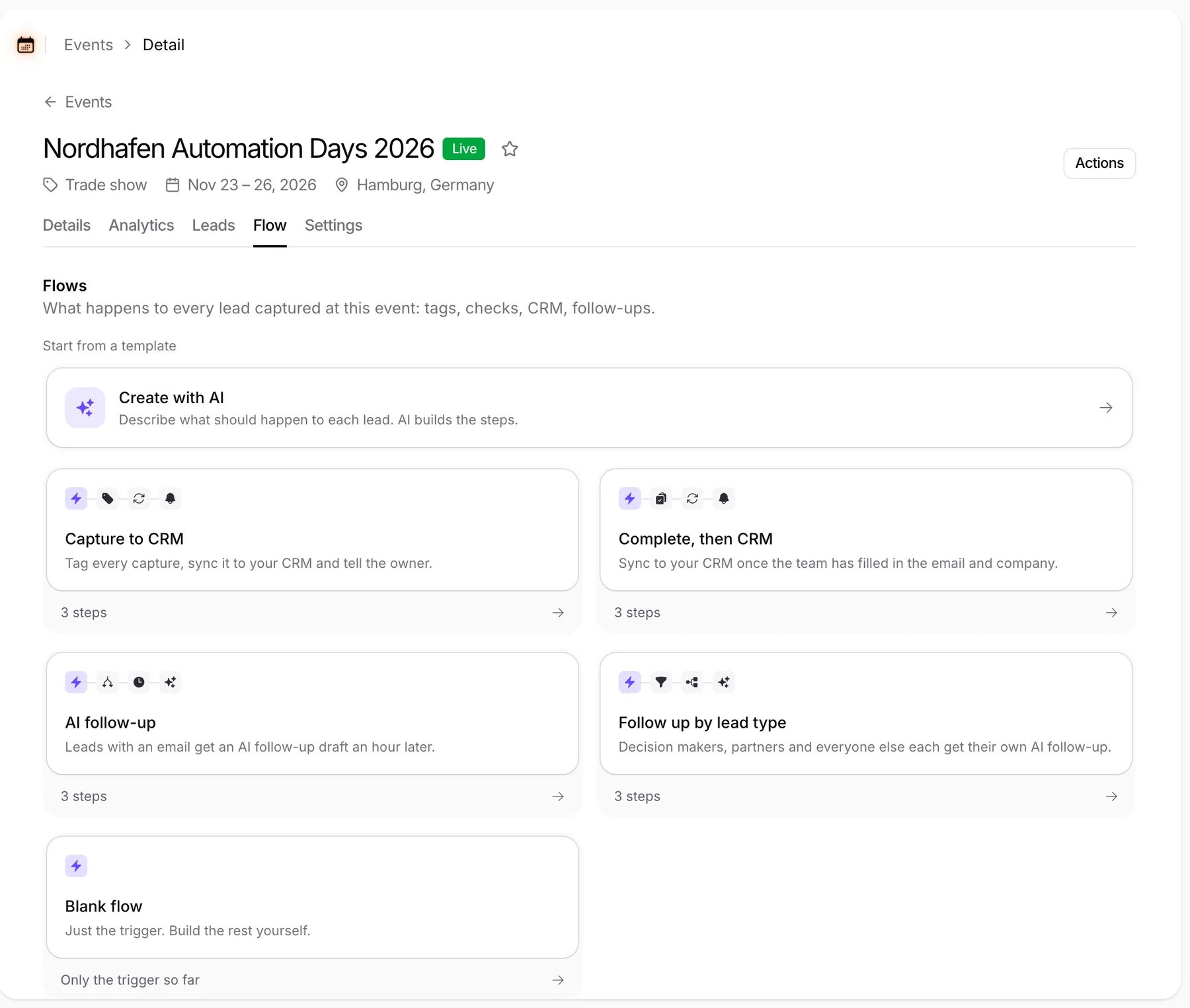
From a template
Pick a template, give the flow a name and select Create flow. Each template is an ordinary flow you can change afterwards.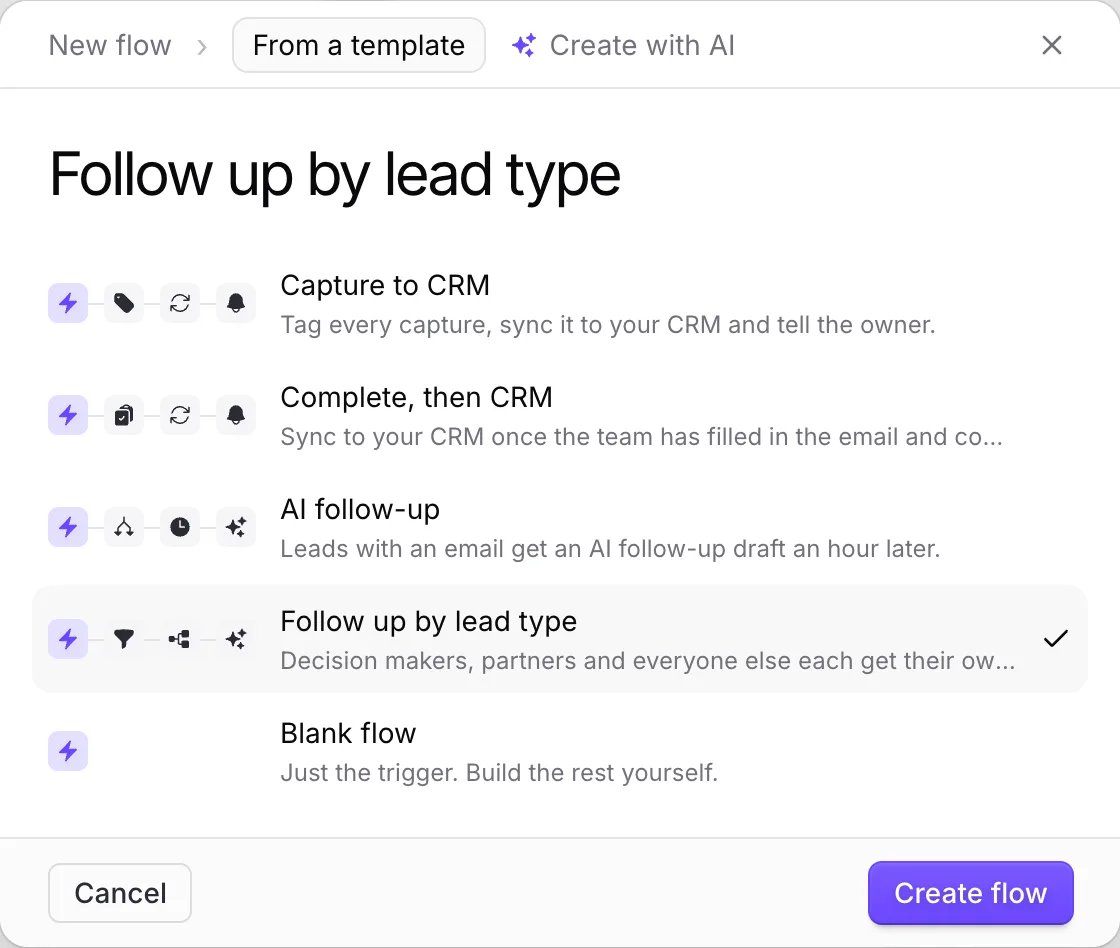
With AI
Switch to Create with AI and describe, in your own words, what should happen to each lead. The examples under the box (Tag and sync to CRM, Next-day follow-up, Chase missing details) fill it in for you to edit. Select Build flow.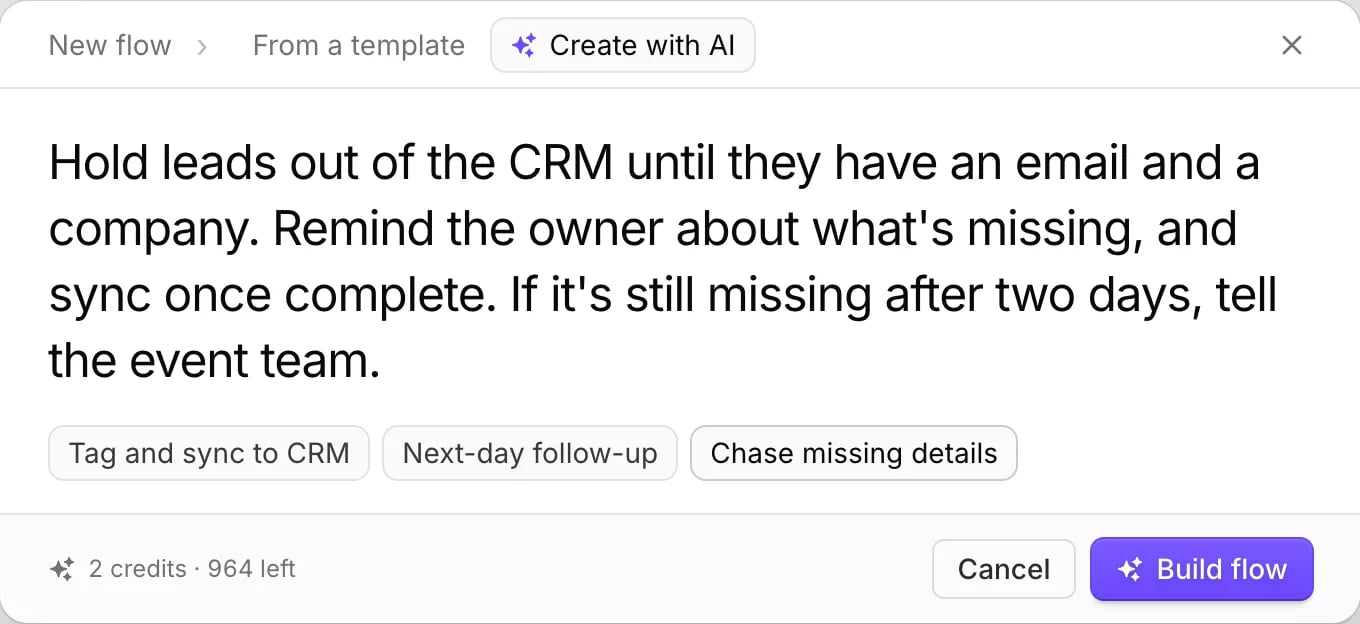
The canvas
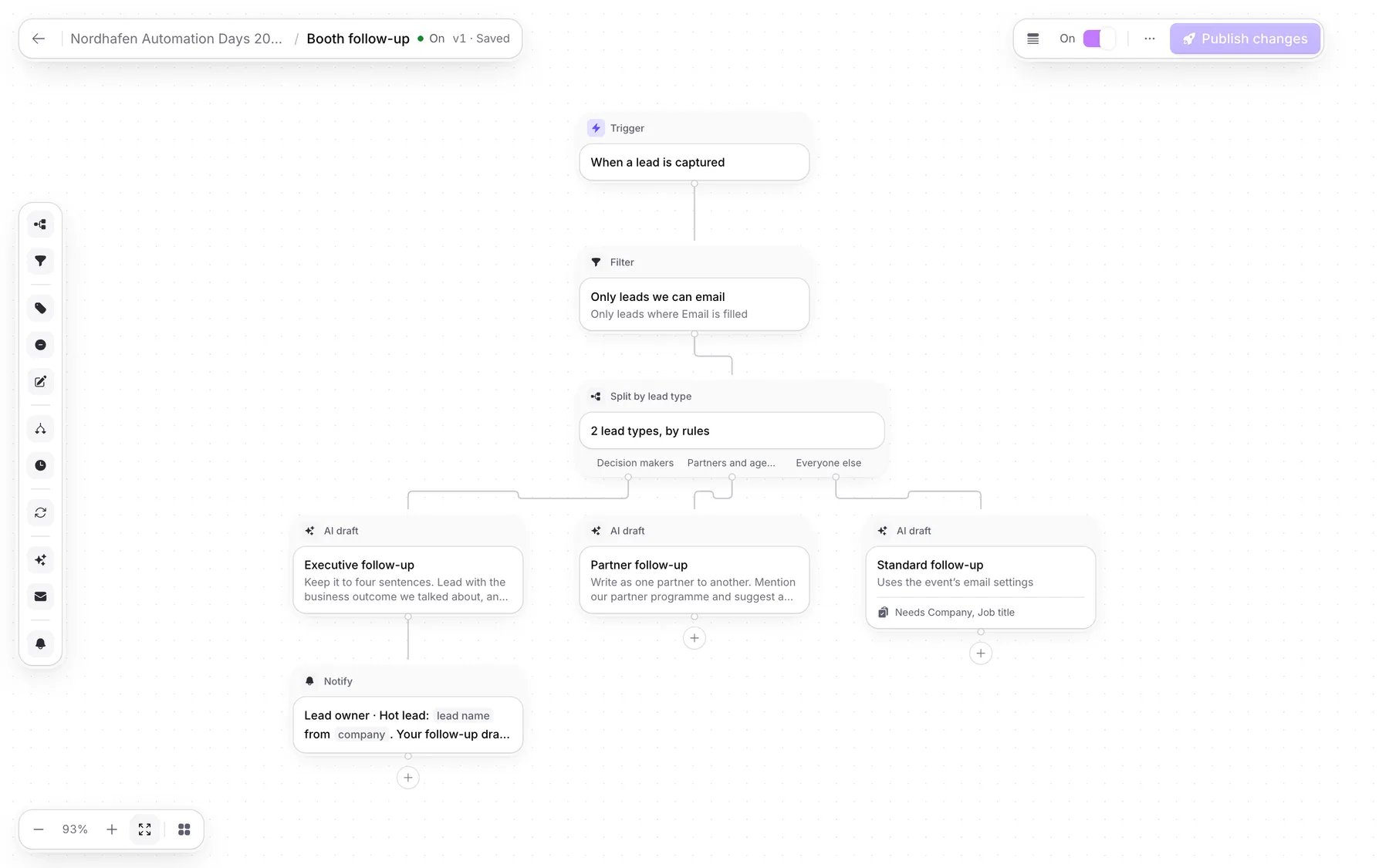
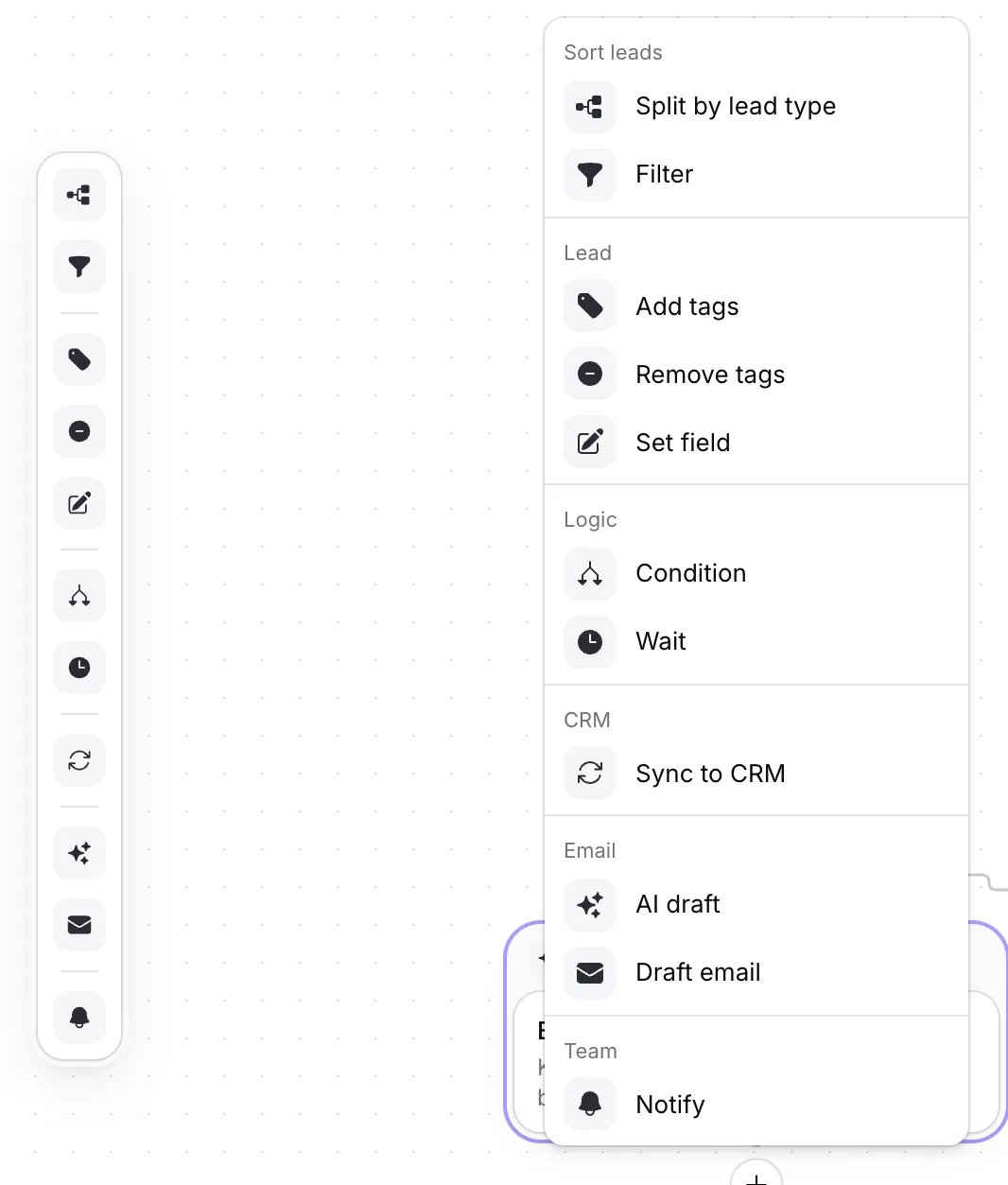
A flow reads from top to bottom. The trigger at the top starts a run, each card below it is a step, and the lines show where a lead goes next. Cards with more than one output, such as a condition (Yes and No) or a split by lead type (one output per type plus Everyone else), send each lead down one of them.- Add a step: click a step in the bar on the left to add it below the selected card, or drag it onto the canvas. You can also click the + under any card to pick from every step.
- Connect steps: drag from a card’s output to another card.
- Set a step up: select its card. Its settings open in the panel on the right.
- Move around: zoom, Fit to screen and Tidy up are at the bottom left.
Choose the trigger
Select the Trigger card to choose what starts a run.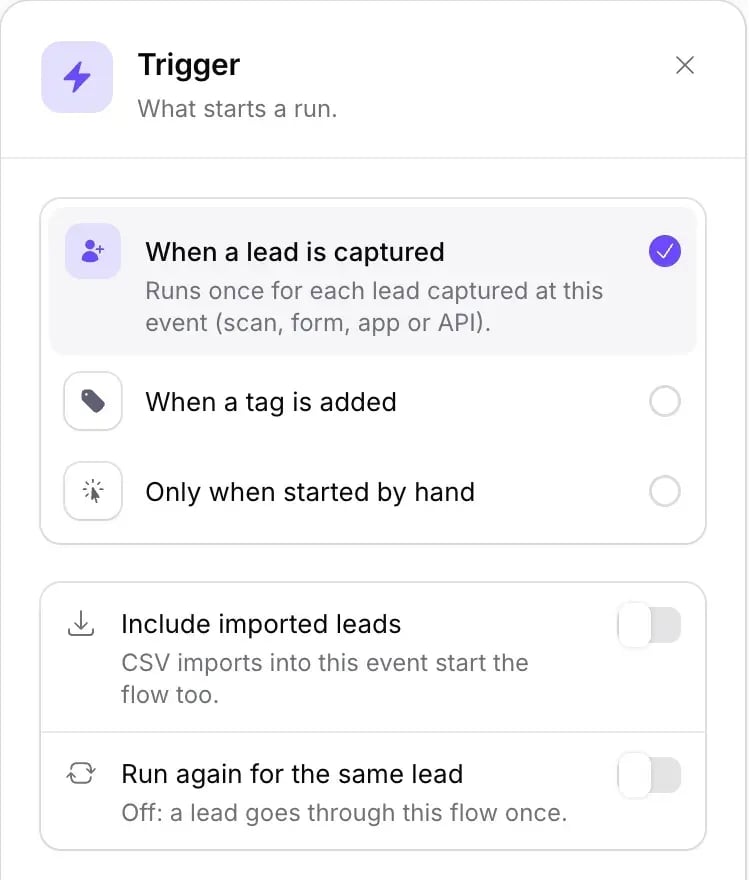
- Include imported leads: leads you add to the event from a CSV import start the flow too. Off by default, so importing last year’s list doesn’t email everyone on it.
- Run again for the same lead: off by default, so each lead goes through the flow once. Turn it on for a tag trigger that should fire every time the tag is added again.
Publish
The flow saves as you edit (the bar at the top says Saved), but nothing runs until you select Publish. If a step is missing something, the button reads Fix 1 problem first and the card in question is marked. When you publish, that version goes live: from then on, every lead that matches the trigger starts a run. The bar shows On and the version number.Change a live flow
Edits to a published flow stay a draft until you select Publish changes, so you can rework a live flow without leads running into a half-built step. Each publish is a new version. A run that has already started finishes on the version it started with. To throw your edits away, open ⋯ and select Discard unpublished changes.Pause, duplicate or delete
- Pause: turn the On switch off. New leads stop starting runs; runs already going carry on. Turn it on again to resume.
- Duplicate: under ⋯. The copy starts as an unpublished draft.
- Delete flow: under ⋯. Runs in progress stop, and the flow’s run history is removed.
The Flow tab
Back on the Flow tab, each flow has a card with a small map of its steps, whether it’s On, Paused or still a Draft, and how its runs are going: runs started, done, failed and in progress, with the last runs as a strip of coloured squares.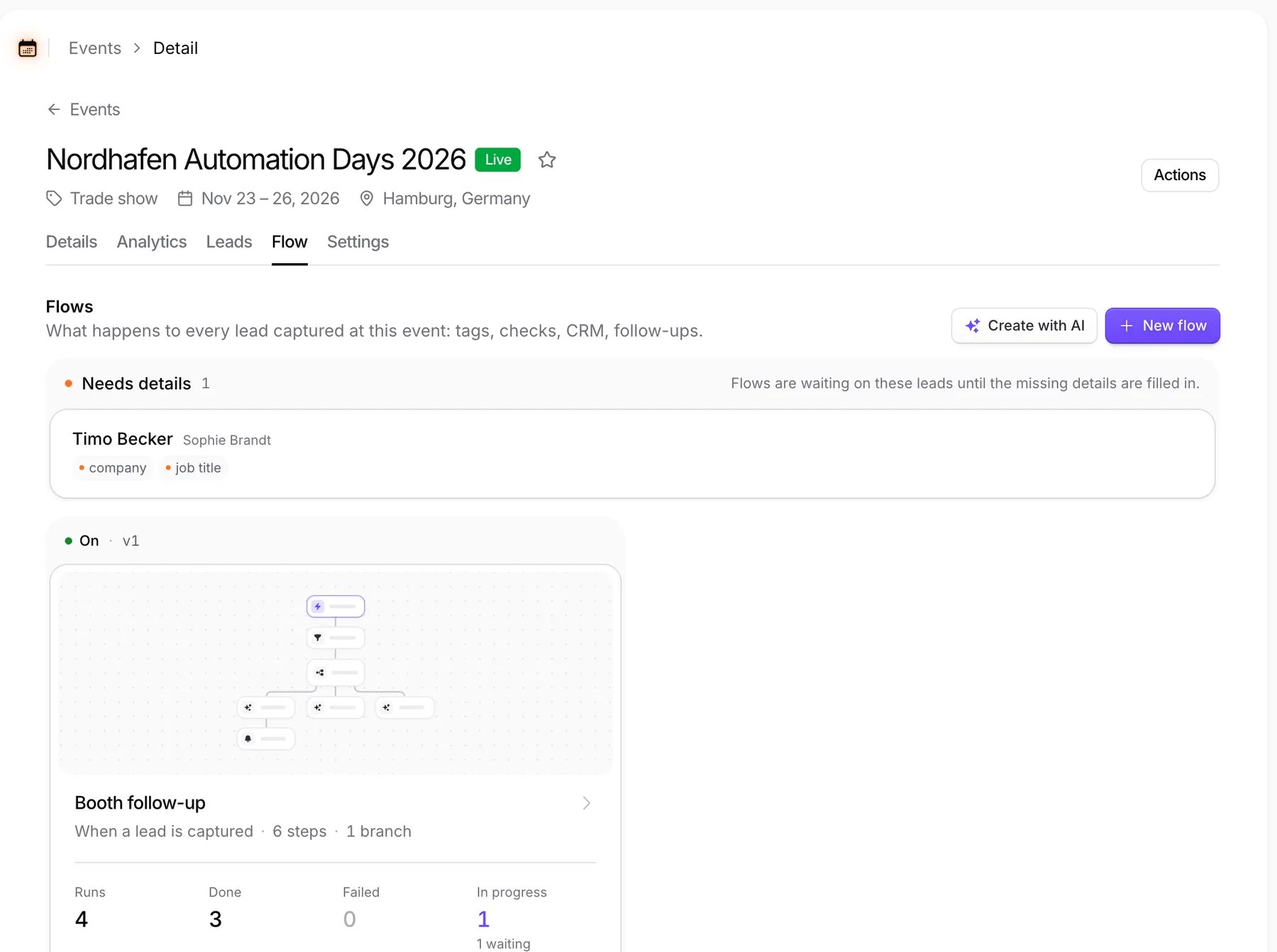
Limits
- Up to 25 flows per event.
- Up to 60 steps in a flow, and 8 lead types in one split.
- A wait or a time limit can be up to 30 days.
- Flows run on leads captured at the event. A lead with no event never starts one.
Related
Flow steps
Every step, its settings, the rule fields and text variables.
Flow runs
Follow a lead through a flow, retry, cancel and run by hand.
Follow up by lead type
A different follow-up for decision makers, partners and everyone else.
Video: Automate every lead with flows
The whole Flow tab in seven minutes.