
Some settings are shared by several steps: rules, Needs before it runs, Retries and errors and text variables.
Sort leads
Split by lead type
Sends each kind of lead down its own path. Each lead type is an output on the card, and leads that fit none of them leave by Everyone else. A split can have up to 8 lead types. Choose how leads are sorted:- By rules
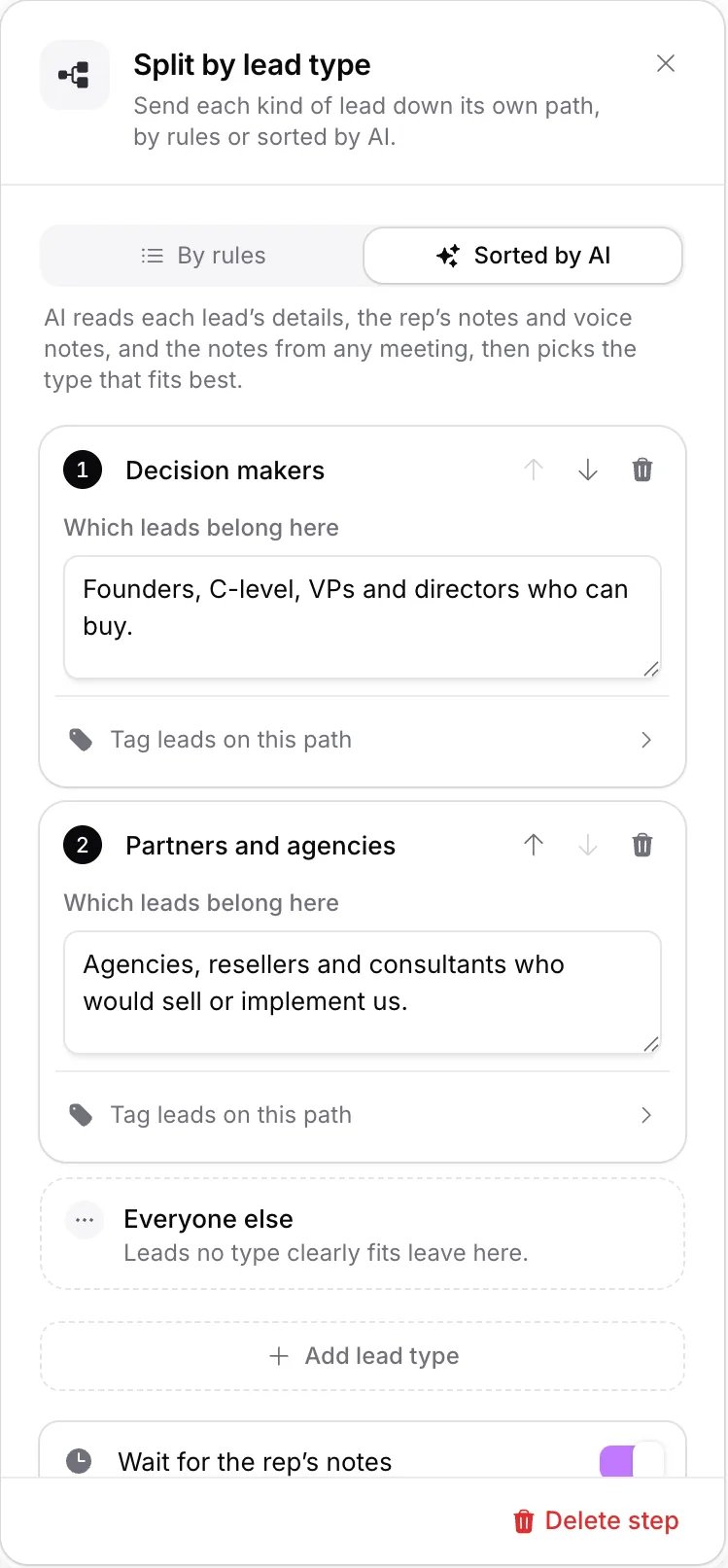
- Sorted by AI
Each lead type has its own rules. CAARD checks the types from top to bottom, and a lead takes the first one it matches. Use the arrows to change the order.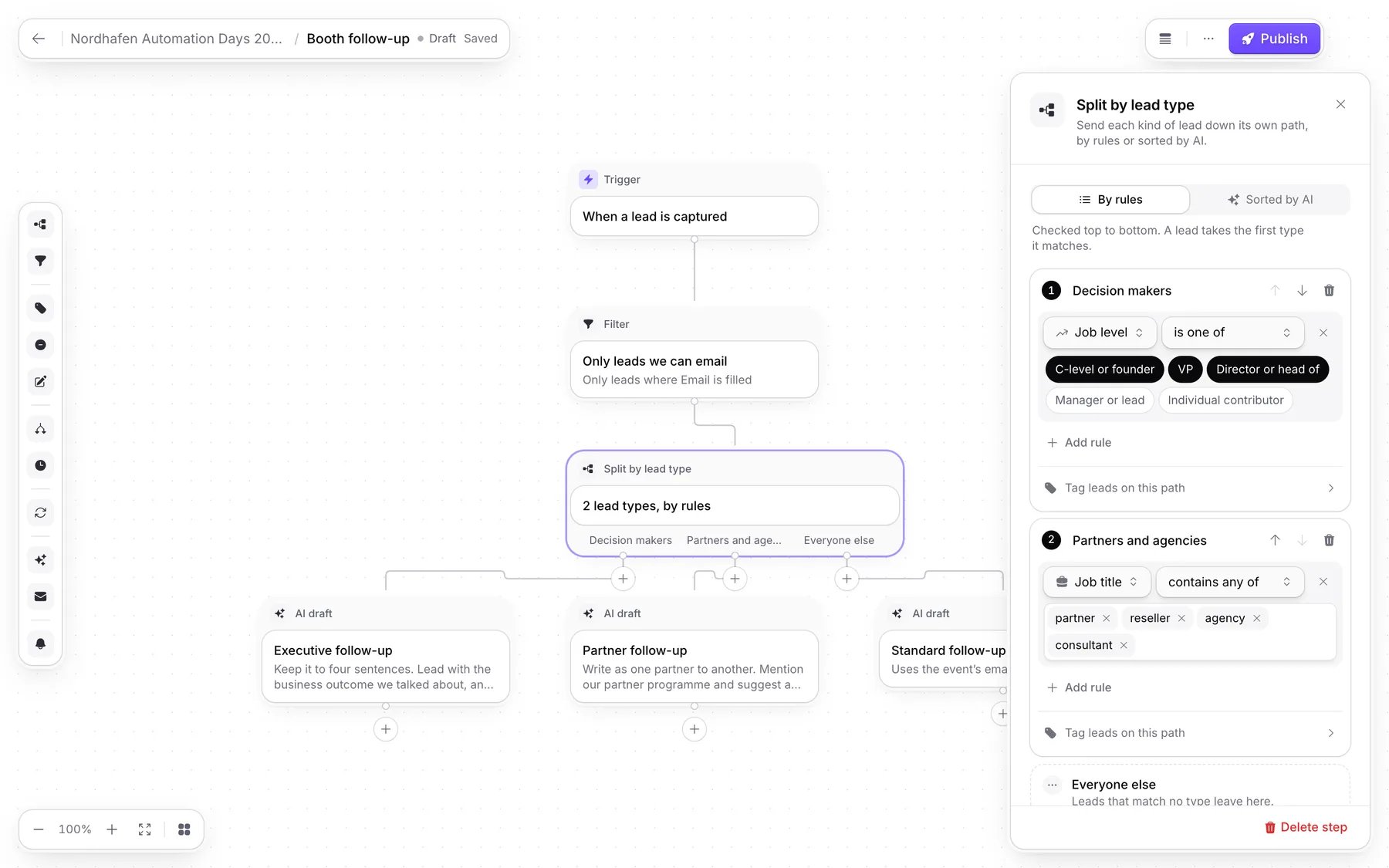
Filter
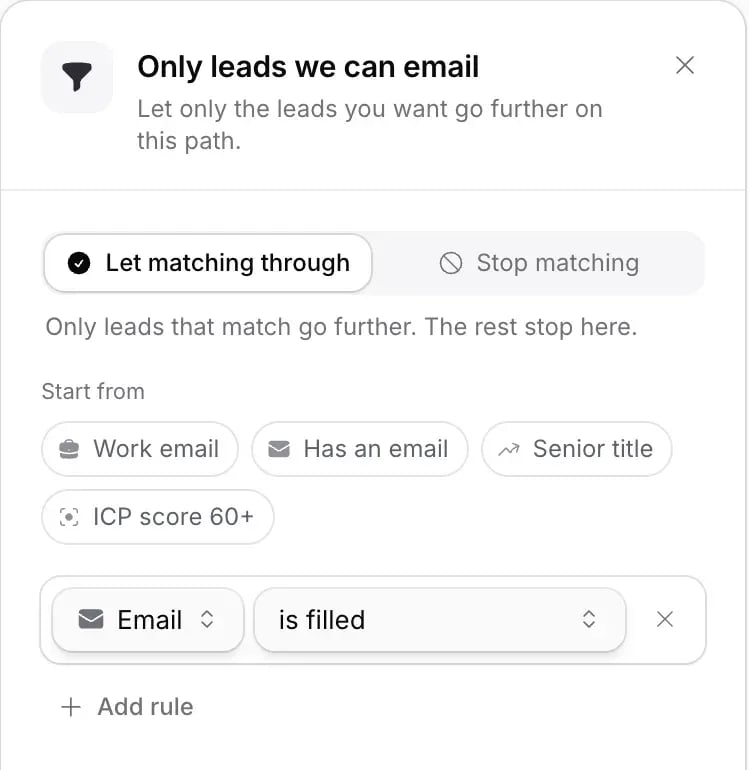
Lets only the leads you want go further on this path.- Let matching through: only leads that match the rules go further. The rest stop here.
- Stop matching: leads that match stop here. Everyone else goes further.
Lead
Add tags and Remove tags
Add or take off one or more of the workspace’s tags. Adding a tag the lead already has, or removing one it doesn’t have, does nothing and the run says so. A tag a flow adds doesn’t start flows that use When a tag is added. Only tags people add do.Set field
Writes one field on the lead: Stage, Company, Job title, Industry, Location, or one of the workspace’s custom fields. For example, move a lead to the Demo stage when someone tags it Demo requested.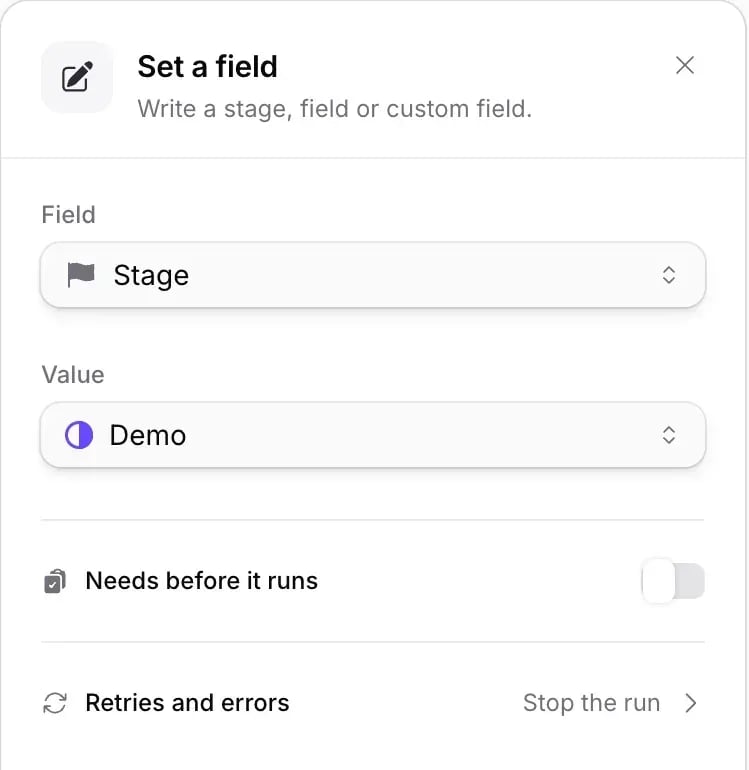
Logic
Condition
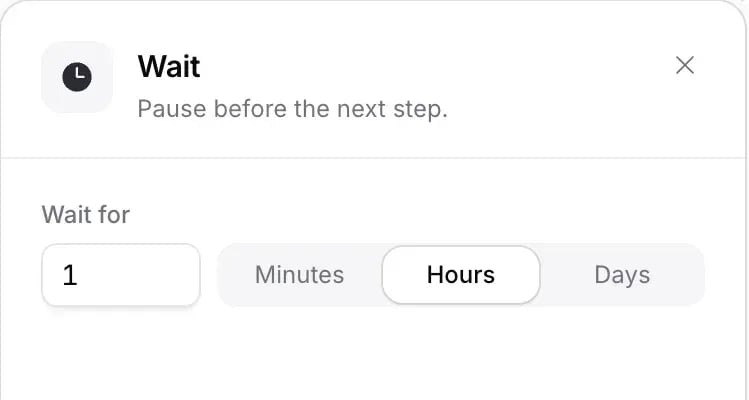
Checks the lead against rules and splits the path in two: Yes when they match, No when they don’t. Connect a step to each output you want to use. An output with nothing connected ends the run there.Wait
Pauses the run before the next step, for a number of minutes, hours or days (up to 30 days). A wait after the trigger gives the rep time to add notes before anything else happens.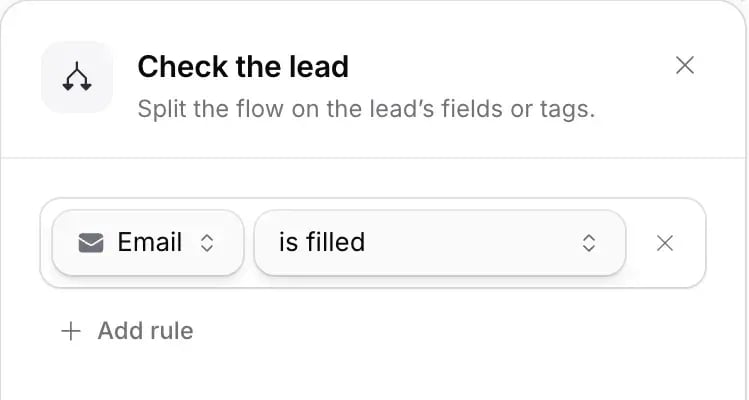
CRM
Sync to CRM
Sends the lead to your connected CRMs, the same way Sync to CRM on a lead does, with your field mappings.- CRMs: pick which connected CRMs to send to. With none picked, it sends to every connected CRM.
- Wait for the sync result (on by default): the run waits until each CRM has answered, shows each result, and retries a sync that failed. Turn it off to move on as soon as the sync is queued.
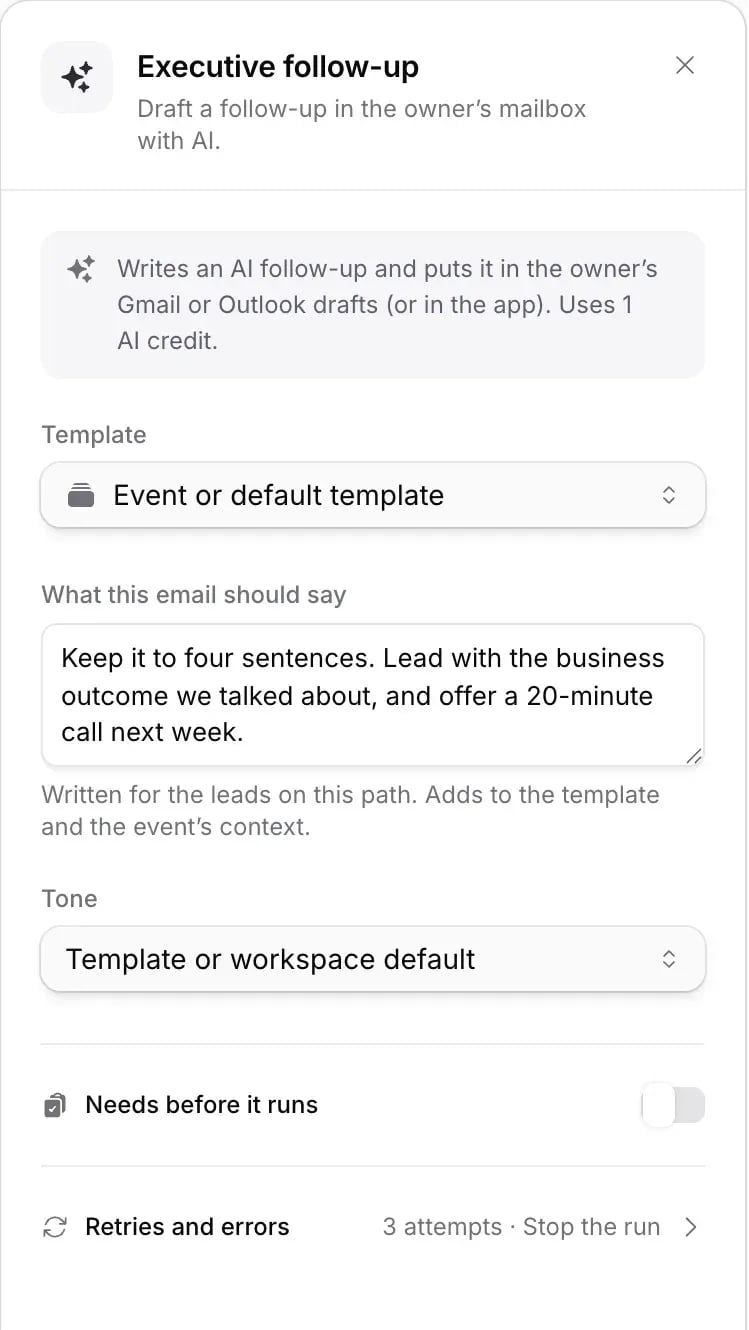
AI draft
Writes a follow-up with AI from what CAARD knows about the lead and the event, the same way Email Lead does on a lead page. Each draft uses 1 AI credit.- Template: one of the workspace’s shared email templates. Left on Event or default template, it uses the event’s email settings.
- What this email should say: instructions for this step only, added to the template and the event’s context. Useful when each path of a split needs a different email, for example “Mention our partner programme and suggest a call about their clients”.
- Tone: Professional, Friendly, Casual, Formal or Enthusiastic. Left on the default, it uses the template’s or the workspace’s tone.
Draft email
An email you write yourself, filled in for each lead with text variables. Write the subject and message on the card itself; select the card and click into it to edit, or use the expand button for more room. No AI is used, so it costs no credits.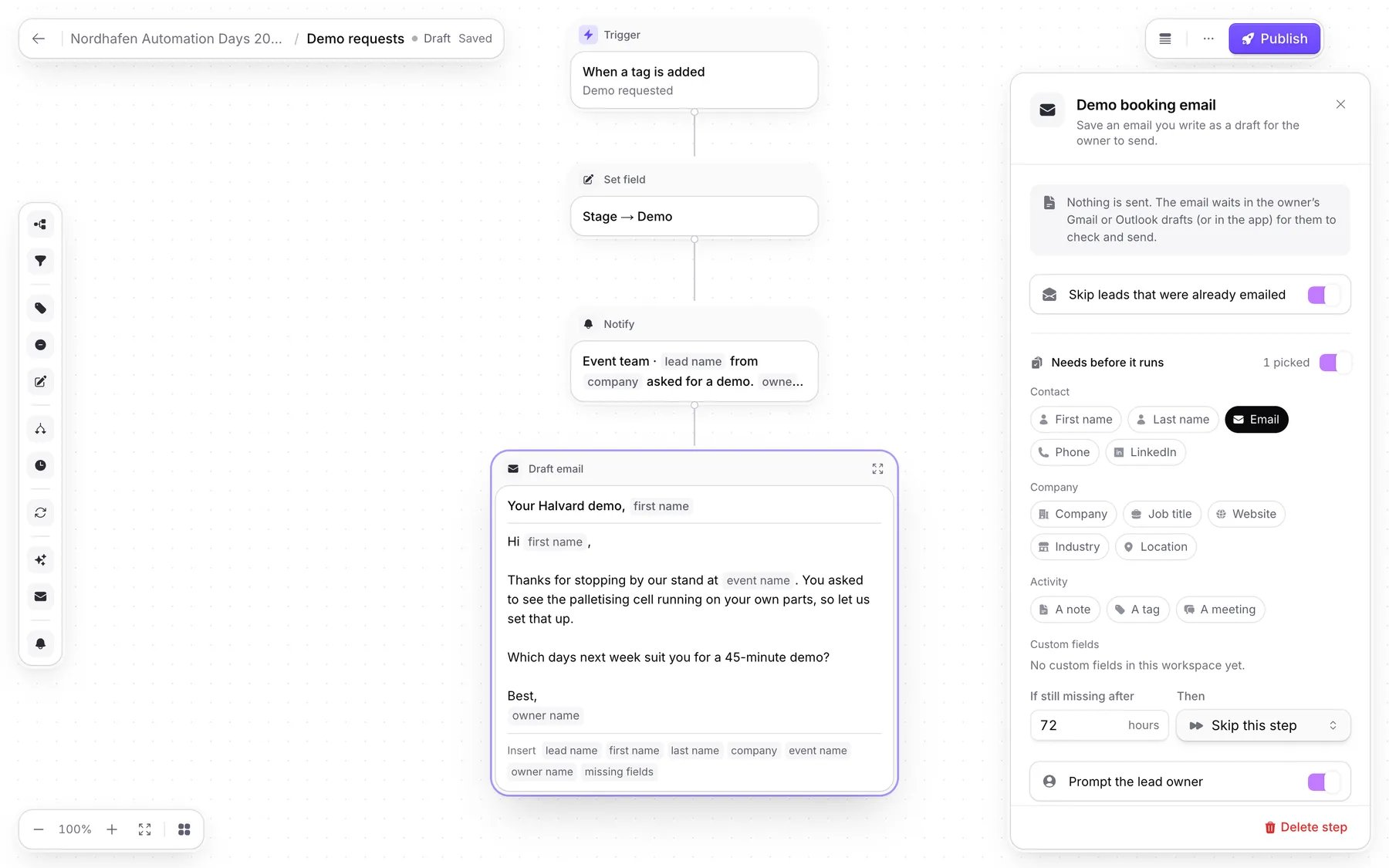
Team
Notify
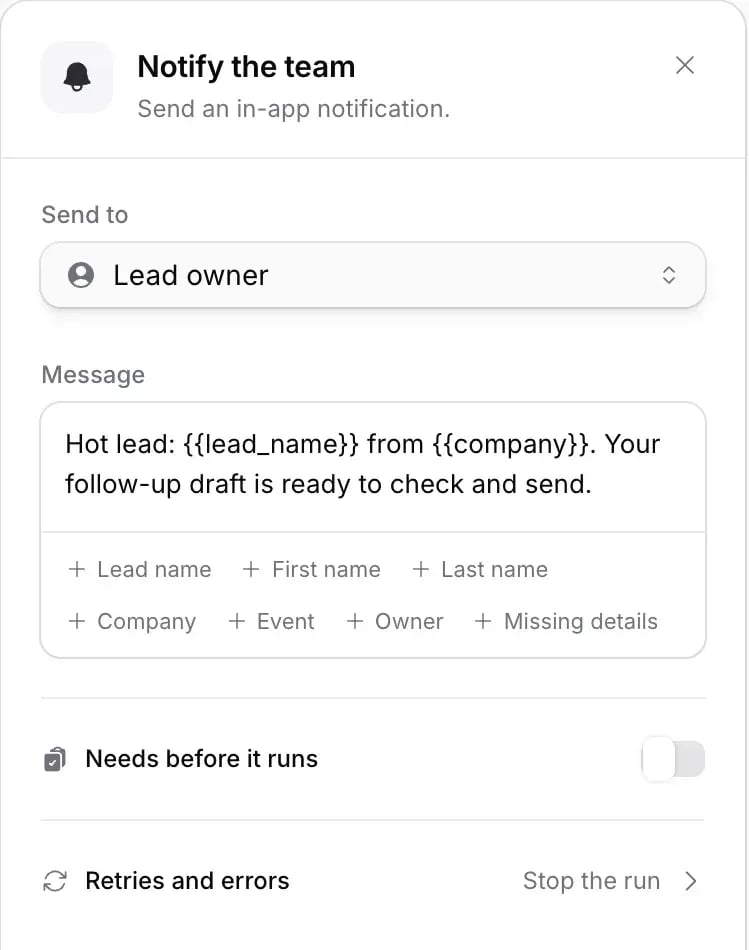
Sends an in-app notification, with a link to the lead.- Send to: the Lead owner, the Event team (the owner and the people assigned to the event), all Admins, or Specific people.
- Message: what the notification says. Insert variables with the buttons under the box.
Rules
Filters, conditions and splits by rules check the lead against rules. Each rule is a field, a check, and usually a value. With more than one rule, choose whether all of them or any of them must match. A step can have up to 12 rules.
A few of these are worked out by CAARD rather than typed in:
- Job level reads the job title: C-level or founder, VP, Director or head of, Manager or lead or Individual contributor. It understands English and German titles, so “Geschäftsführer” is C-level and “Vertriebsleiter” a director.
- Email can be checked as a work email or a personal email (Gmail, Outlook, GMX and similar).
- ICP score and Company size compare as numbers (is at least, is at most). They’re empty until the lead is enriched or scored.
- Captured via is how the lead came in: QR scan, LinkedIn QR, the mobile app, a website form, the API, a CSV import and so on.
- Notes and Meeting notes search the rep’s notes, voice note transcripts and meeting summaries with contains or contains any of. Meeting interest is how interested the lead sounded in a recorded meeting: Hot, Warm, Cold or Unclear.
A step whose rules read Notes, Meeting interest or Meeting notes first waits for the rep’s notes, the same way an AI split does: 2 minutes after the scan, and longer for a meeting or voice note still being written up.
Needs before it runs
Any step that acts on the lead (tags, Set field, Sync to CRM, both email steps and Notify) can wait for details it needs. Turn on Needs before it runs and pick them: contact and company fields, custom fields, or A note, A tag or A meeting.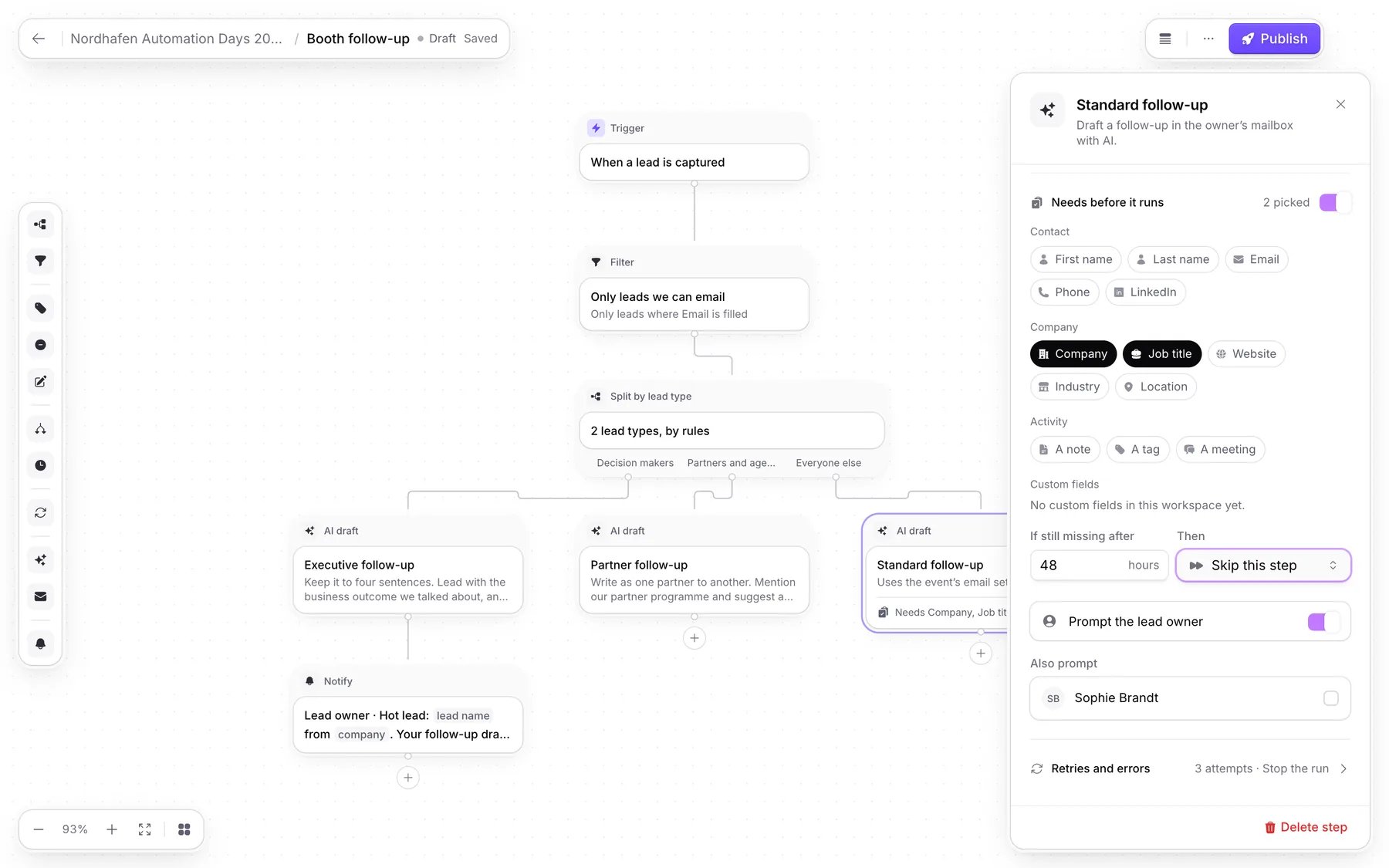
- Prompt the lead owner (on by default) sends the owner a notification listing what’s missing. Also prompt adds other people.
- The lead shows up under Needs details on the event’s Flow tab, and its lead page shows a banner with what’s missing.
- As soon as someone fills in the details, the run carries on by itself.
- Skip this step: the run moves on to the next step without it.
- Stop the run: the run ends here.
Retries and errors
Steps that reach outside CAARD (Sync to CRM, AI draft, Draft email and an AI split) try again if they fail, for example when a mailbox or CRM doesn’t answer. Under Retries and errors, set:- Attempts: 1 to 6, 3 by default.
- First retry after: how many seconds to wait before the first retry. Each retry after that waits longer.
- When this step fails: Stop the run, or Carry on to the next step. An AI split can instead Send to Everyone else.
Text variables
Notify messages and Draft email subjects and messages can include the lead’s details. Insert them with the buttons under the text box, or type them in double curly braces:
A variable the lead has no value for is left empty, so
Hi {{first_name}}, becomes Hi , on a lead with no first name. Put a Needs before it runs on the step if that matters.