
1. Start from the template
- Open the event’s Flow tab and select New flow.
- Pick Complete, then CRM and name the flow, for example Complete before sync.
- Select Create flow.
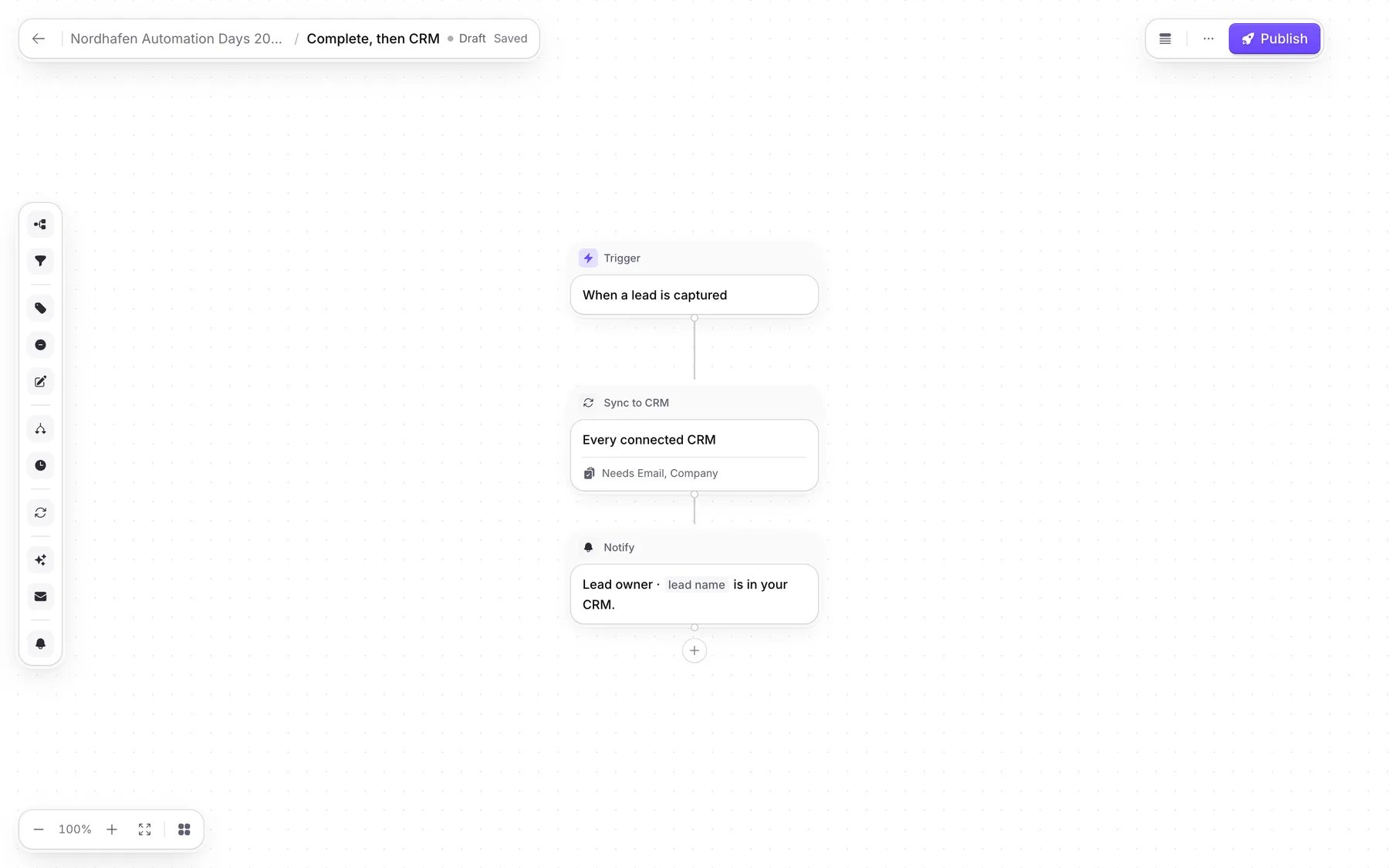
2. Pick what the CRM needs
Select the Sync to CRM card. Under Needs before it runs, Email and Company are already picked. Add whatever else your team won’t work a lead without, for example Job title or Phone, or one of your custom fields such as Region. A note is useful if you want the rep’s impressions in the CRM too. Keep the list short. Every detail you add is one more thing a rep has to type before the lead can move.3. Hold the lead back
Make sure Keep out of automatic CRM sync until then is on. Without it, your CRM’s own automatic sync would still send the lead the moment it’s captured, and this step would only add a second sync later.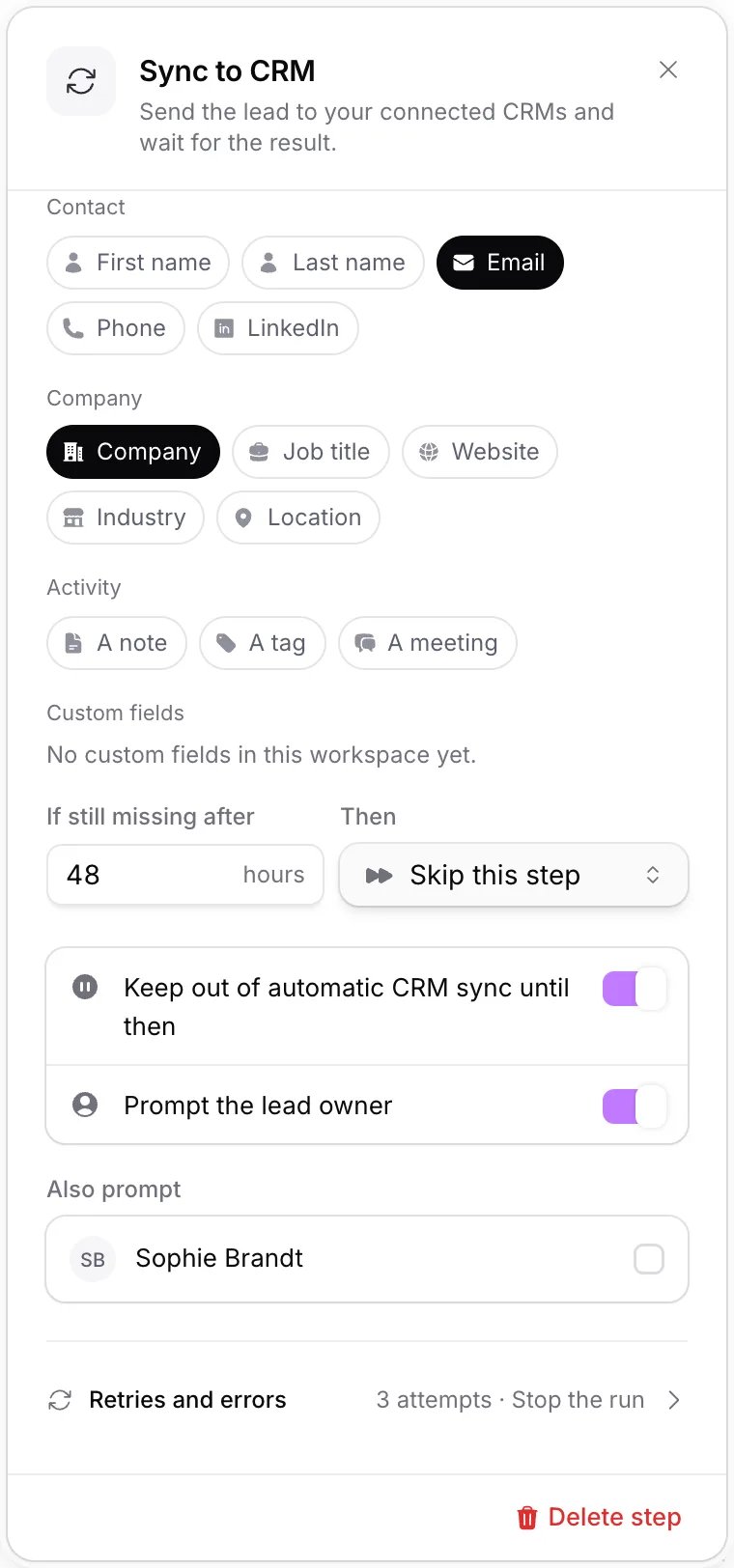
4. Decide how long to wait
If still missing after is 48 hours in the template. Then:- Skip this step leaves the lead out of the CRM for now. It’s released from the hold, so it syncs the next time anyone edits it, and the run carries on.
- Stop the run ends the run there. The lead is released the same way.
5. Make sure someone fills it in
Prompt the lead owner is on, so the owner gets a notification listing what’s missing. Under Also prompt, add a sales assistant or the event lead who tidies up leads after the show. While a lead waits, the event’s Flow tab lists it under Needs details, and the lead’s page shows a banner with what’s missing. When the rep adds the last detail, the run carries on by itself and the lead syncs.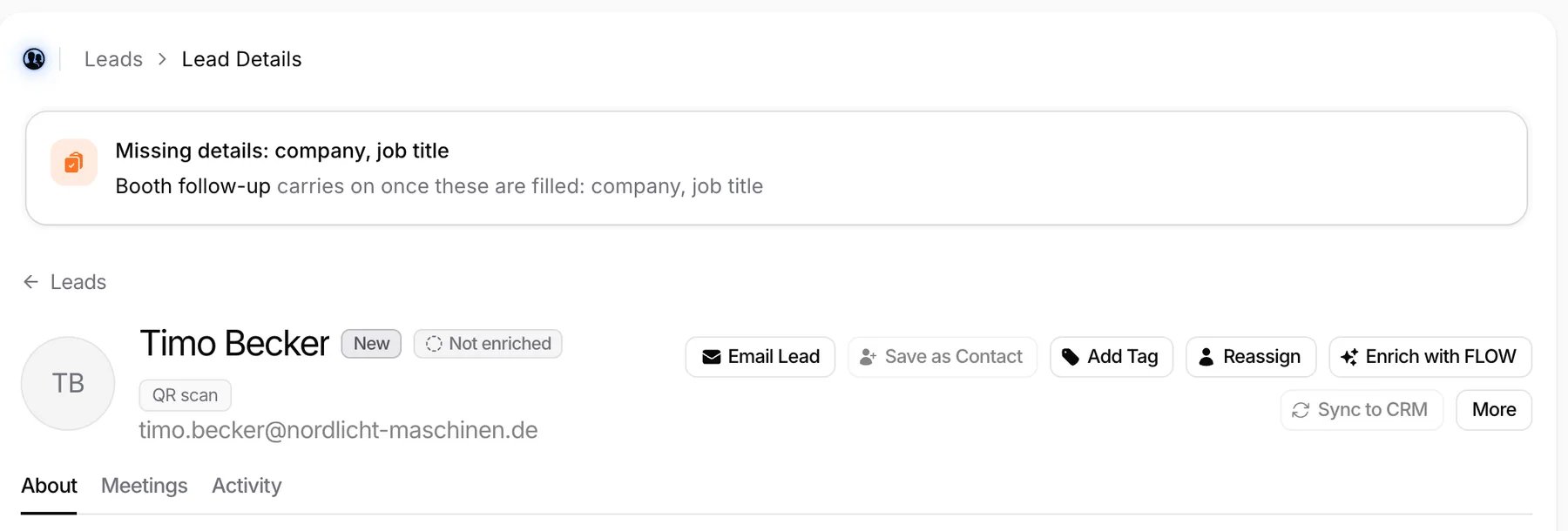
6. Publish
Select Publish. Every lead captured at the event from now on is held until it’s complete. Check it with your next capture: open the runs panel and select the run. While it waits, the Sync to CRM step reads Waiting for: email, company. Once it’s complete, it reads Synced to HubSpot (or your CRM), and the owner’s notification follows.Things to know
- Only automatic sync is held. A rep can still select Sync to CRM on the lead page and send it anyway. That’s on purpose, for the lead that really can’t wait.
- Leads captured before you published aren’t held. To hold and sync them through the flow too, use All leads in the runs panel.
- Every connected CRM: with no CRM picked under CRMs, the step sends to all of them. Pick one if you have HubSpot and Odoo connected and only one should get event leads.
- The CRM’s answer: with Wait for the sync result on, a failed sync is retried and shows up on the run with the CRM’s error. See HubSpot troubleshooting or Odoo troubleshooting.