
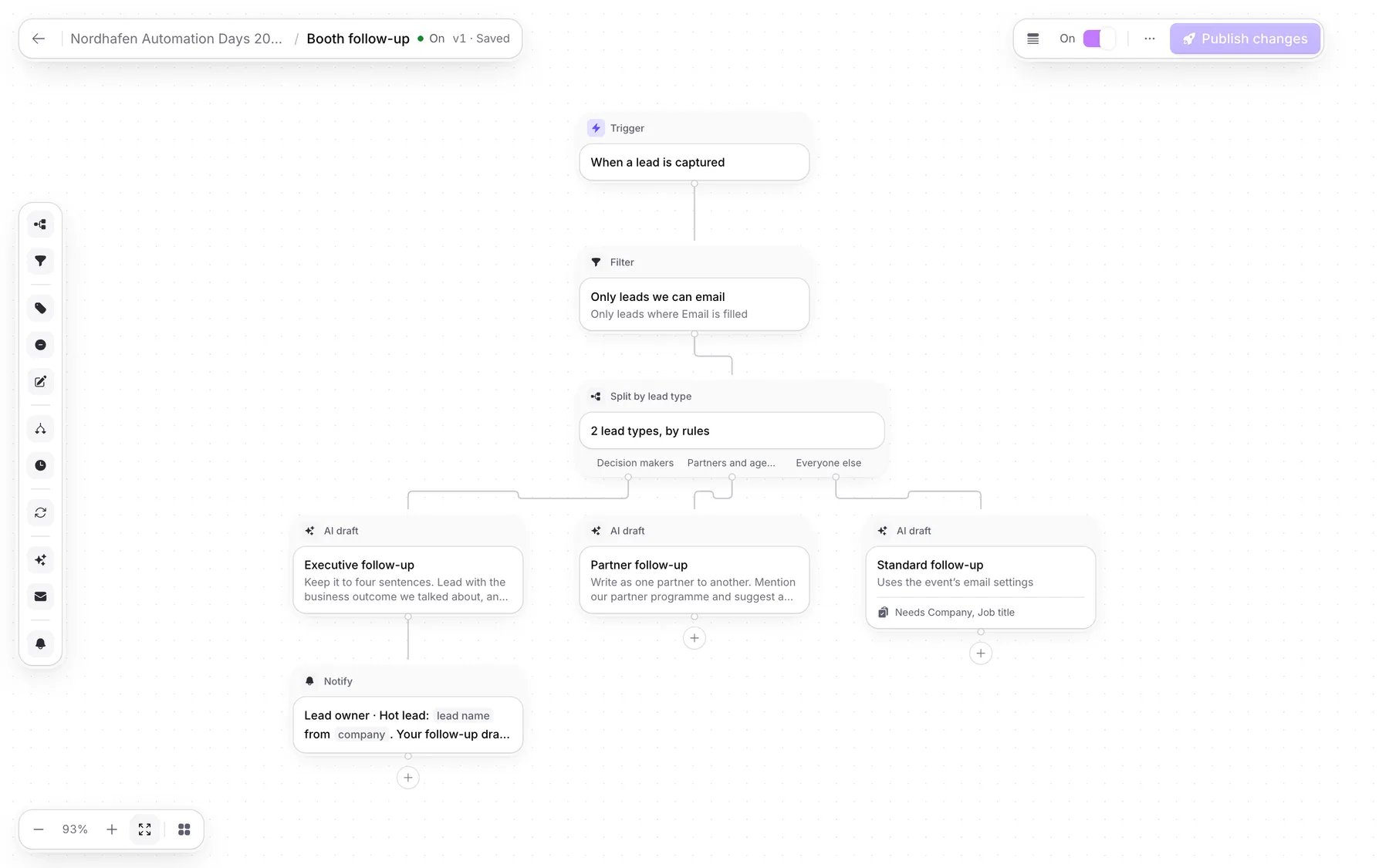
- Decision makers get a short email about the business outcome, are tagged Hot lead, and their owner is told the draft is waiting.
- Partners and agencies get an email about the partner programme.
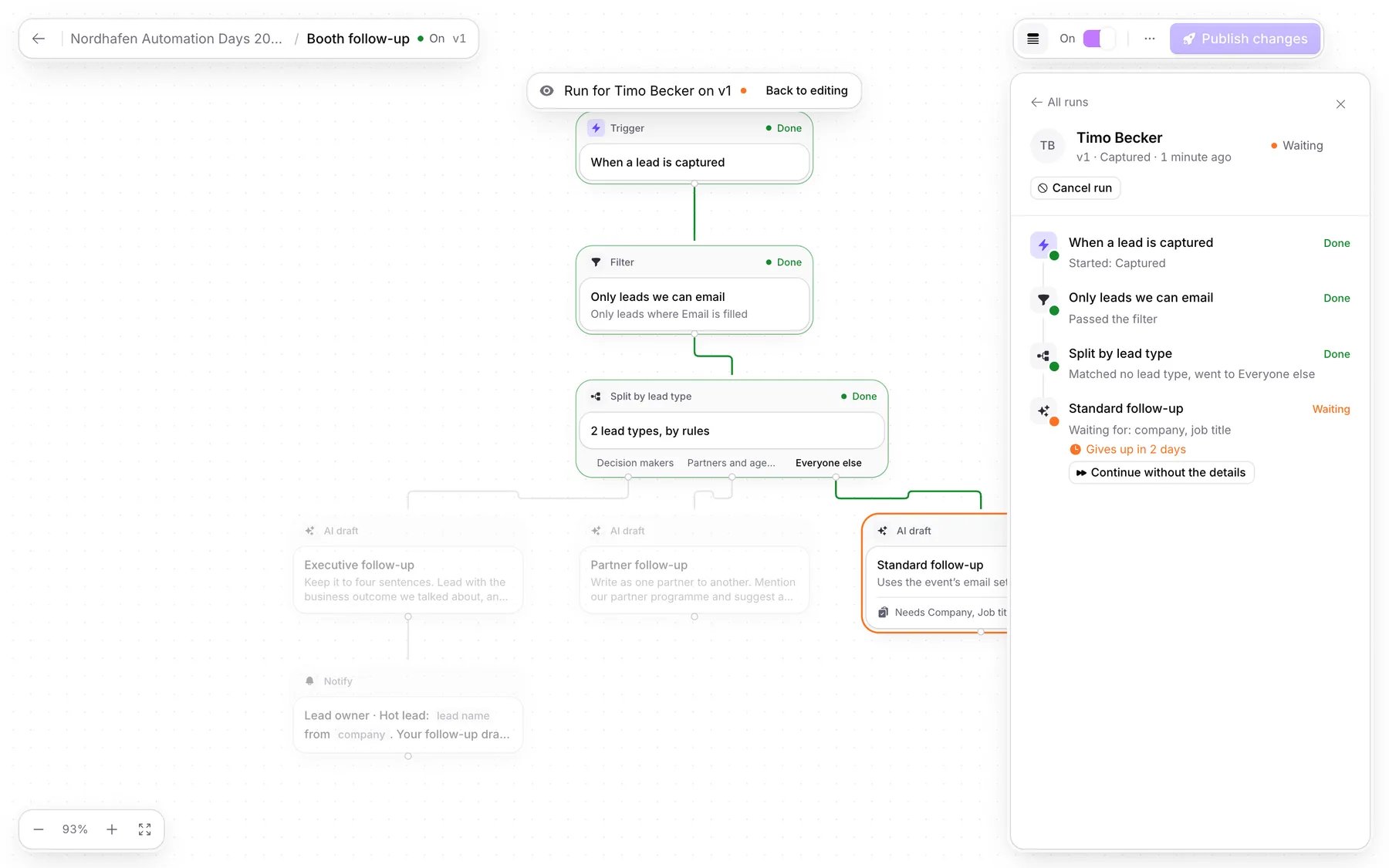
- Everyone else gets the event’s standard follow-up, once the rep has added their company and job title.
1. Start from the template
- Open the event and go to the Flow tab.
- Select New flow, pick Follow up by lead type, and name it, for example Booth follow-up.
- Select Create flow.
2. Keep only leads you can email
The Filter card under the trigger is called Only leads we can email. It lets through leads with an email address, and stops the rest: there’s nothing to draft for them. If you only want to follow up with company addresses, select the card and pick Work email under Start from. That also stops Gmail, Outlook and other personal addresses.3. Decide who’s who
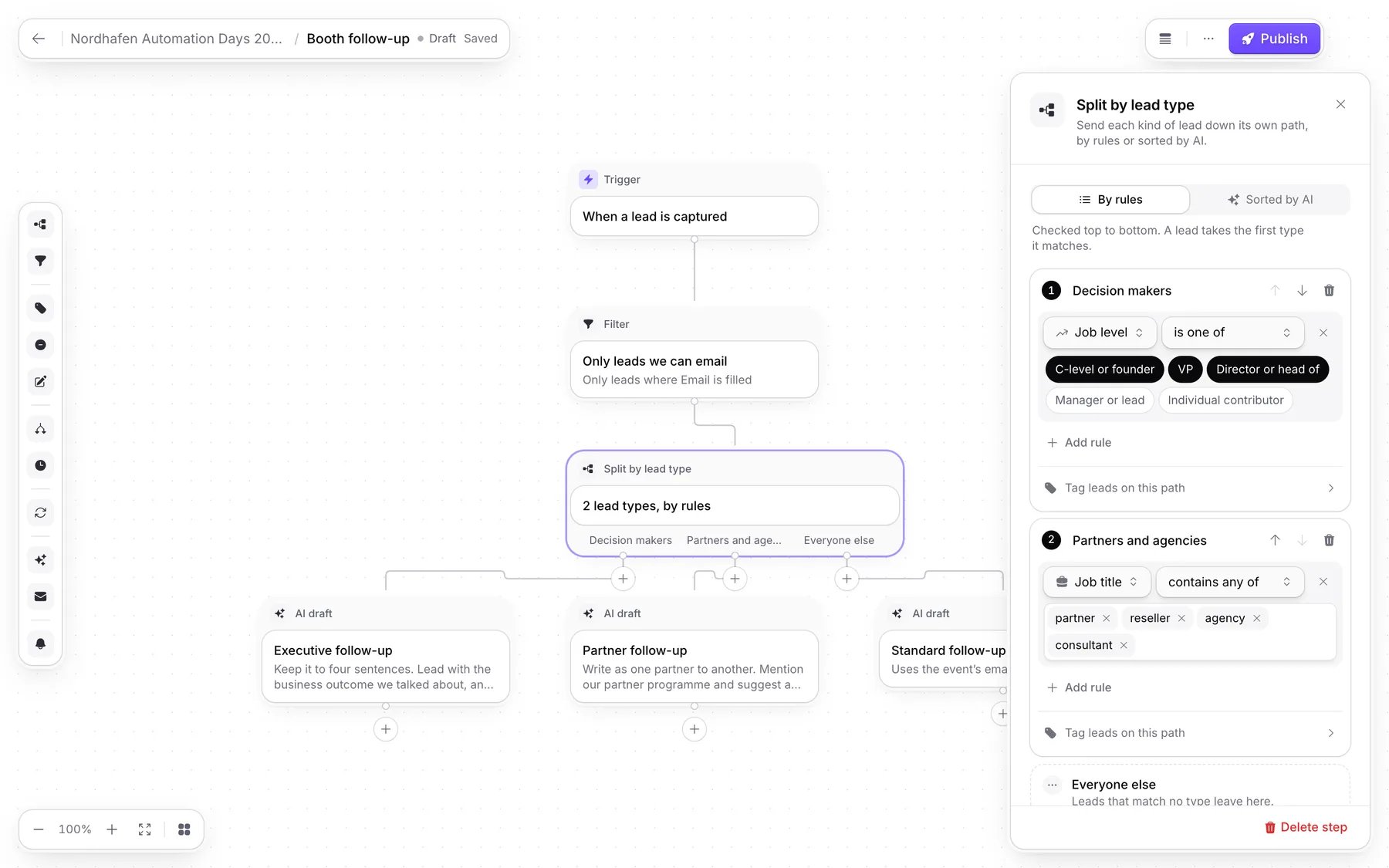
Select the Split by lead type card. The template sorts by rules, checked from top to bottom:
Job level is worked out from the job title, in English and German, so a “Geschäftsführer” counts as C-level without you listing every variant.
Then tag the decision makers: under Decision makers, open Tag leads on this path and tick Hot lead.
Or let AI sort them
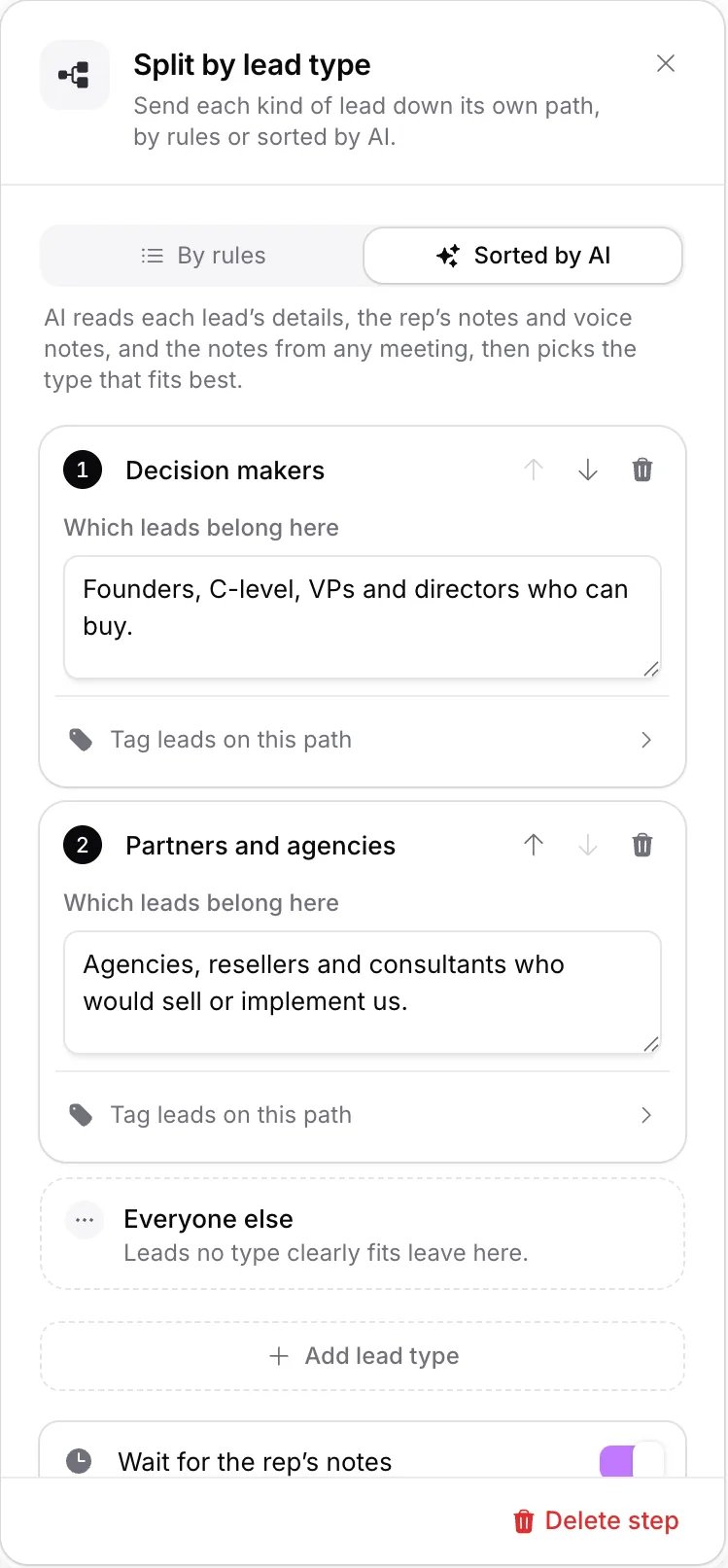
Rules depend on the job title. If your reps capture a lot of leads from business cards and conversations, the notes often say more than the title does (“runs procurement for three plants”, “wants a quote by Q3”). Switch to Sorted by AI and describe each type in plain words instead:- Decision makers: “Founders, C-level, VPs and directors who can buy.”
- Partners and agencies: “Agencies, resellers and consultants who would sell or implement us.”
4. Write each follow-up
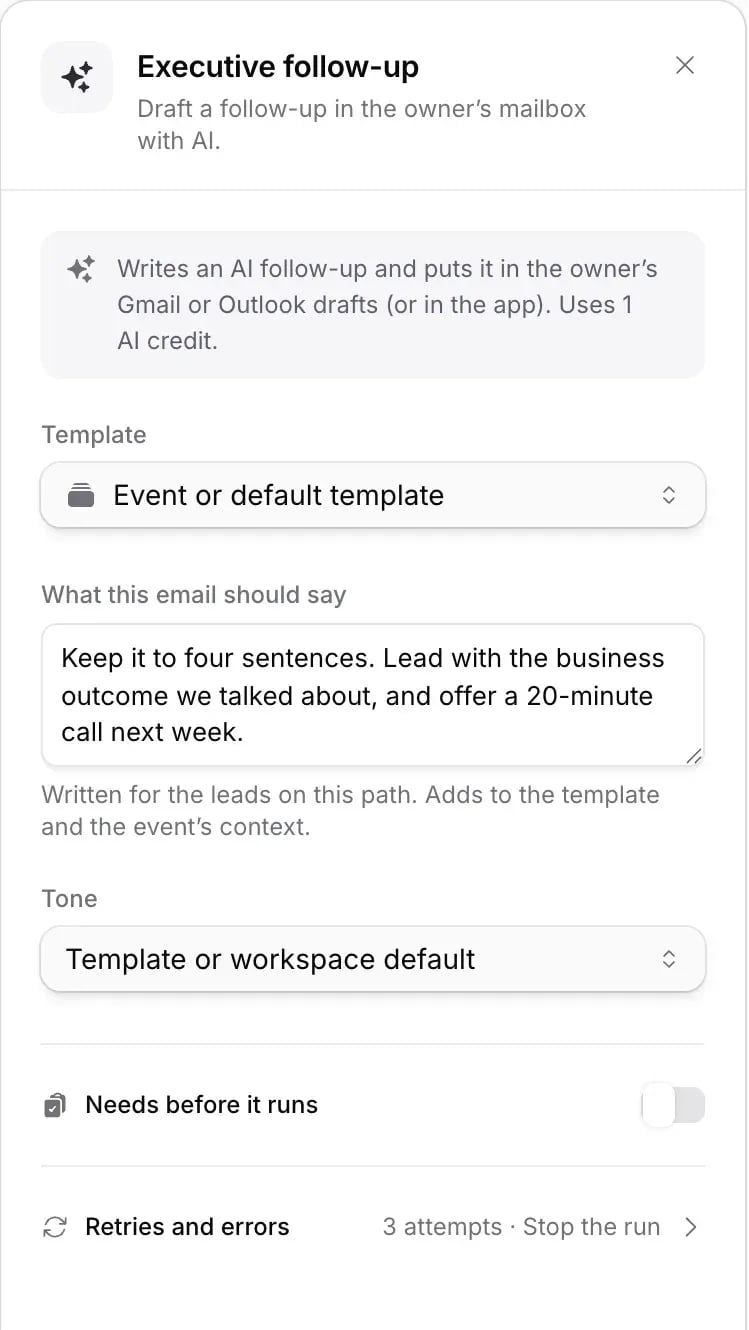
Each path ends in an AI draft. Select one to see what it’s told:- Executive follow-up: “Keep it to four sentences. Lead with the business outcome we talked about, and offer a 20-minute call next week.”
- Partner follow-up: “Write as one partner to another. Mention our partner programme and suggest a call to see if their clients are a fit.”
- Standard follow-up: no extra instructions. It uses the event’s email settings.
5. Tell the owner about hot leads
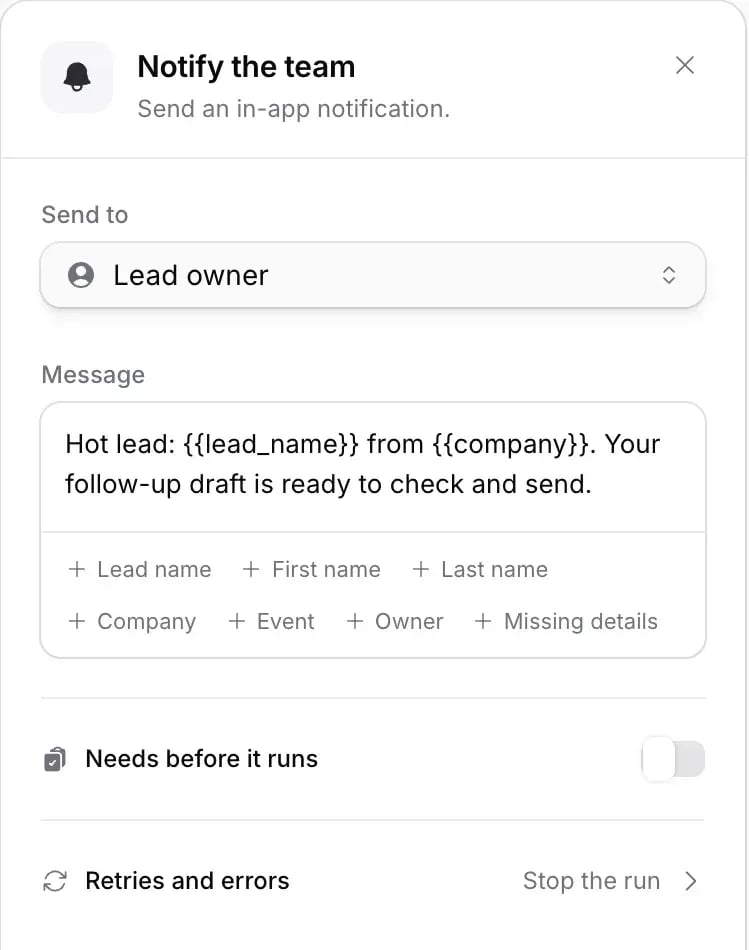
A decision maker’s draft shouldn’t sit unnoticed. Under the Executive follow-up card, click + and pick Notify:- Send to: Lead owner
- Message:
Hot lead: {{lead_name}} from {{company}}. Your follow-up draft is ready to check and send.
6. Wait for the details on everyone else
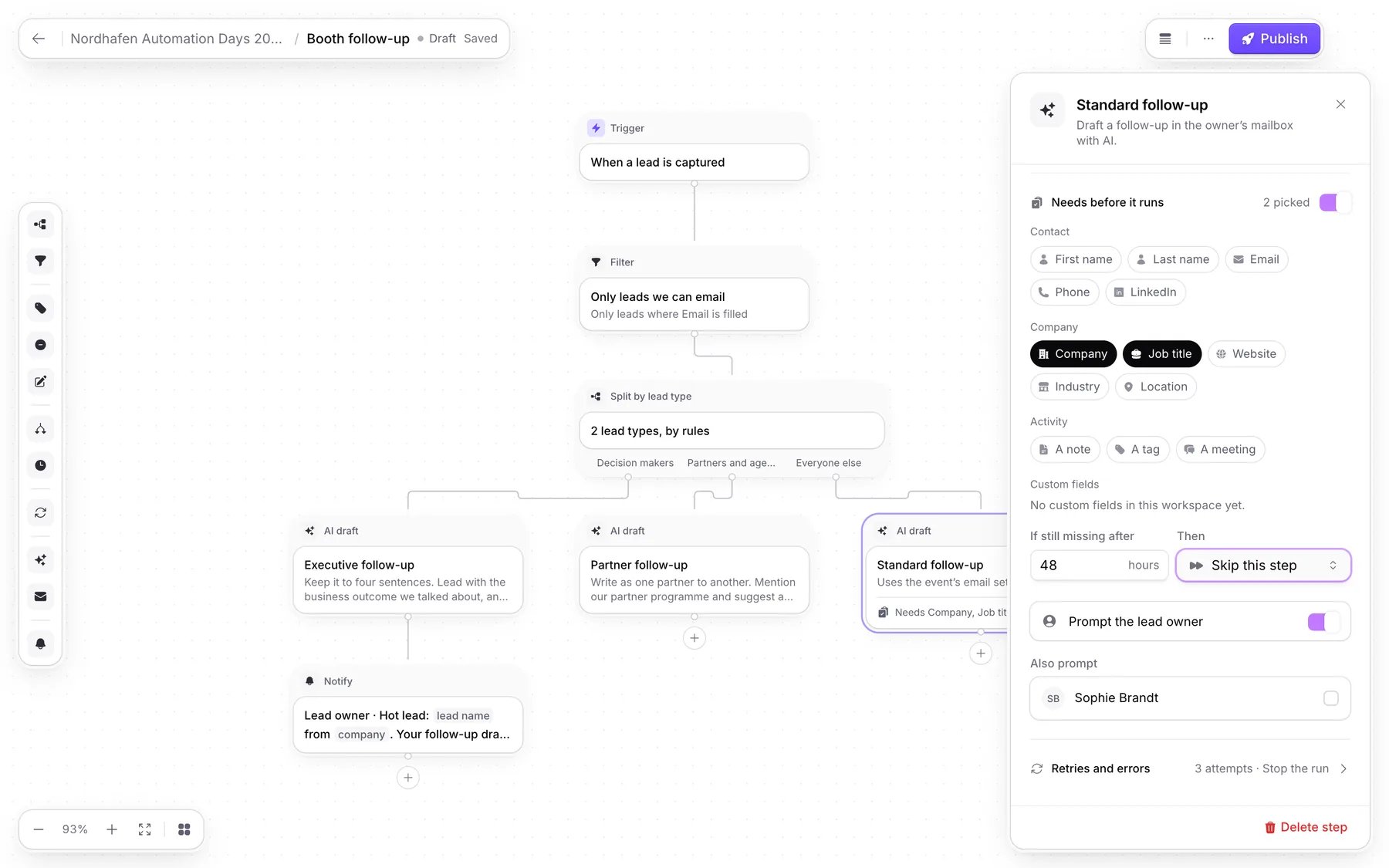
The standard follow-up is weak without a company or job title, and leads from a quick badge scan often lack both. Select the Standard follow-up card and turn on Needs before it runs:- Pick Company and Job title.
- Set If still missing after to 48 hours, then Skip this step.
- Leave Prompt the lead owner on.
7. Publish and check the first runs
Select Publish. From now on, every lead captured at the event starts a run. When the first leads come in, open the runs panel (the list button at the top right) and select a run. The steps the lead went through light up, and the panel says what each did, including which type the lead was sorted into.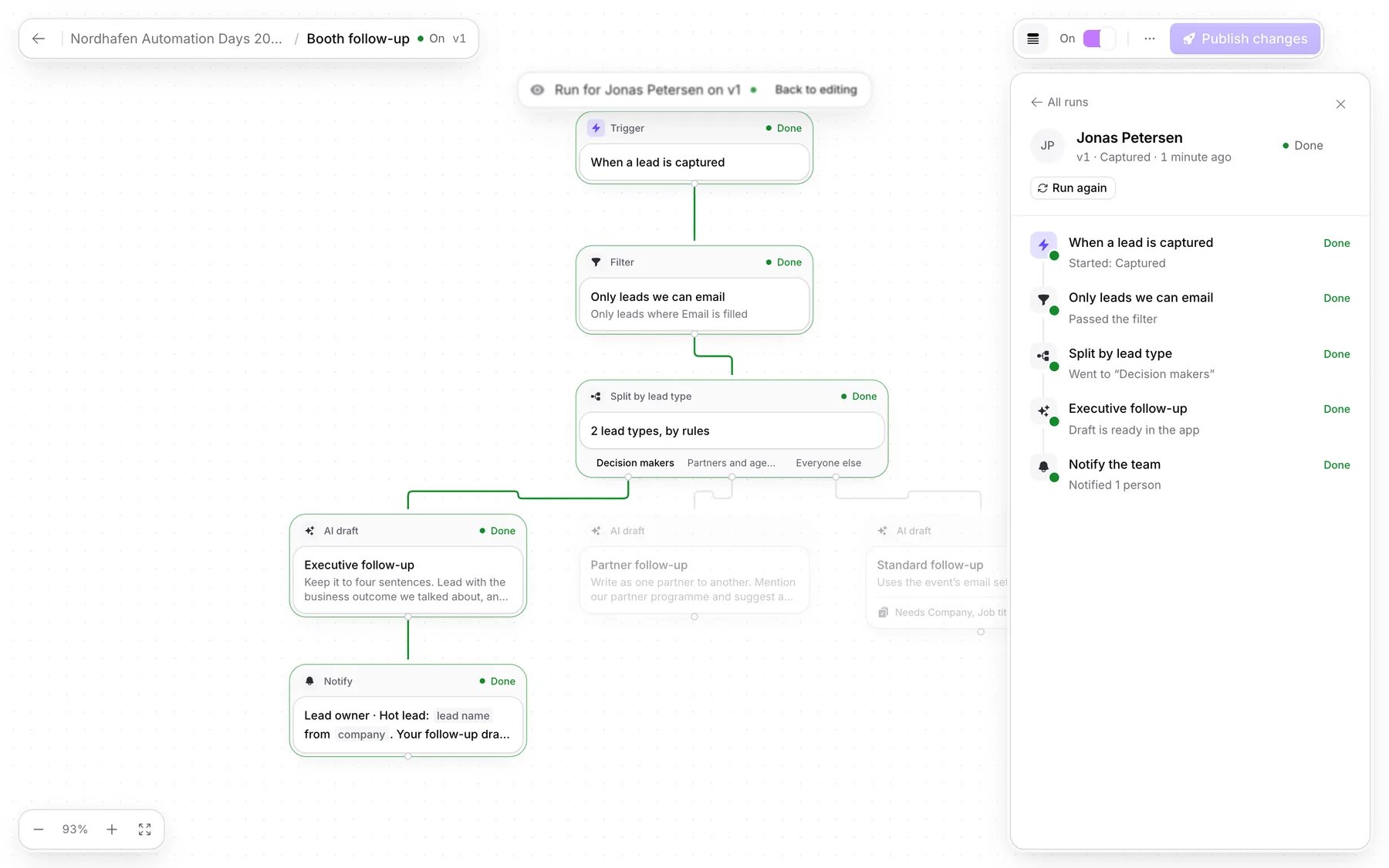
Make it yours
- More lead types: select Add lead type on the split (up to 8), then connect a step to its new output. Existing customers (email domain is one of your customers’ domains) or Students (job title contains any of student, intern) are common ones.
- Skip the follow-up for some: connect nothing to Everyone else, and those leads’ runs end there.
- Send them to your CRM too: add a Sync to CRM between the trigger and the filter so every lead goes, or between the filter and the split for only the leads you can email.
- Hot from the meeting: if your reps record meetings, add a lead type with the rule Meeting interest is one of Hot.